

Manage your review team's approvals at different stages of your content's lifecycle.

Managing your Approvals
After uploading new content, project leads will need to add reviewers and manage their approvals. The Manage Approvals page provides insightful information about the people working on the content and their approval status. Additonally, users can also change the due date and export the certificate of approval from this page.
How to Add Reviewers
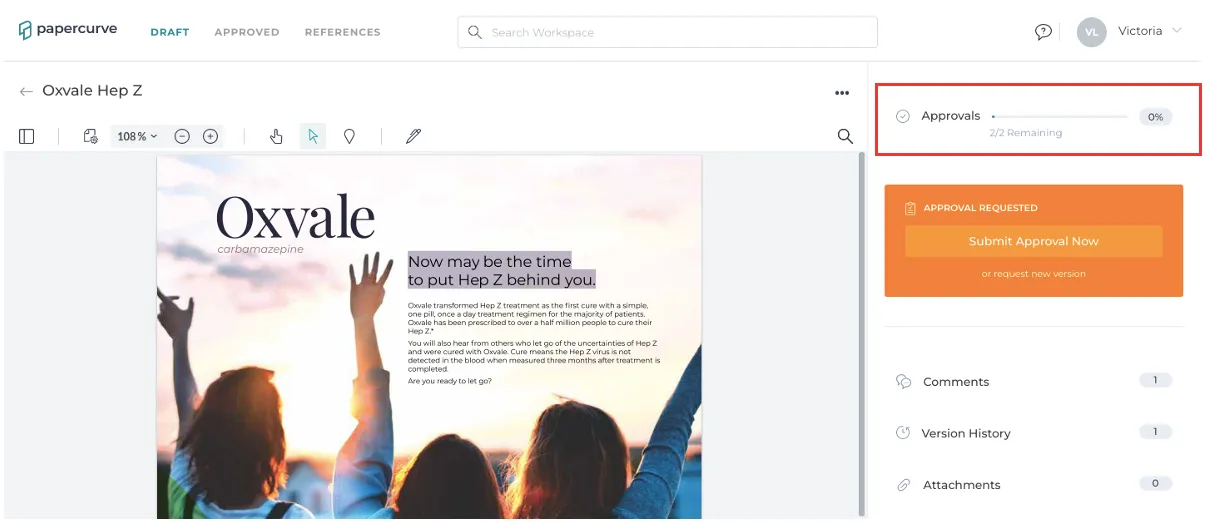
- Within a draft content, navigate to the Manage Approvals page by clicking on the Approvals tab on the right-hand side panel.
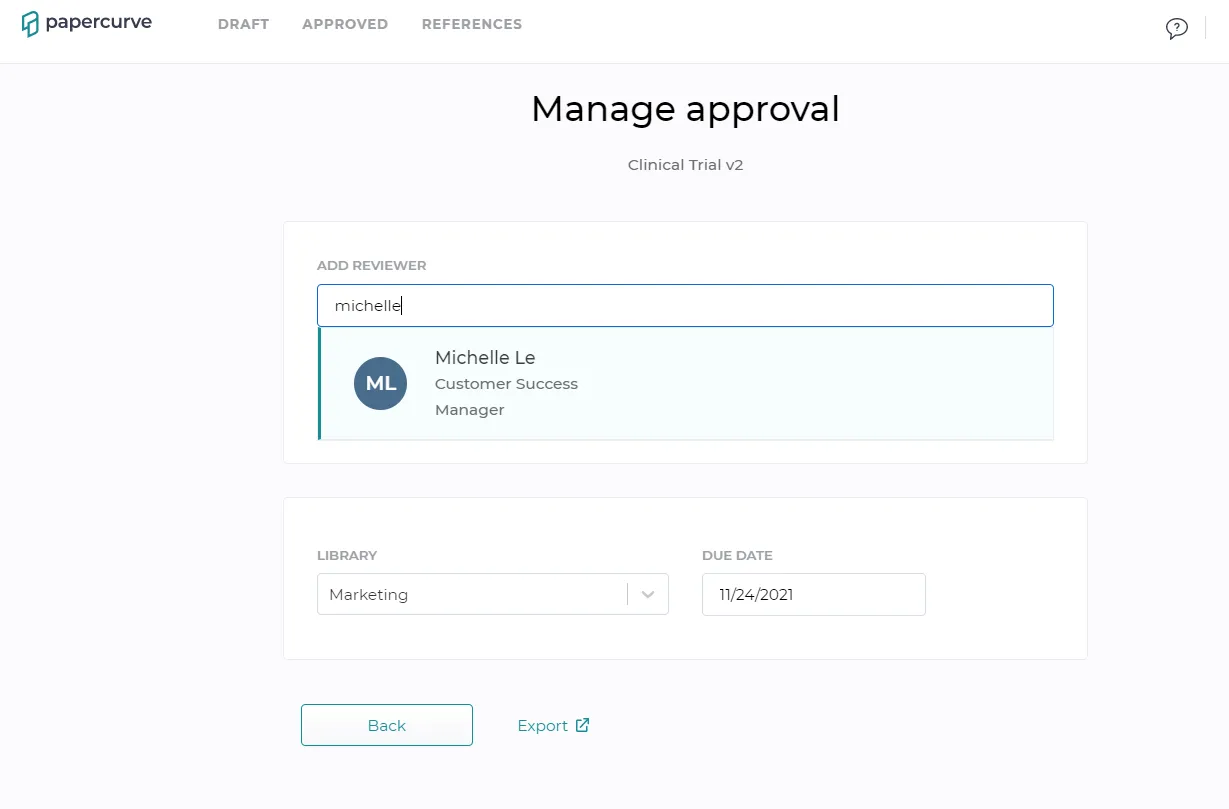
- Add reviewers to your team by typing in the search bar to populate specific users to select.
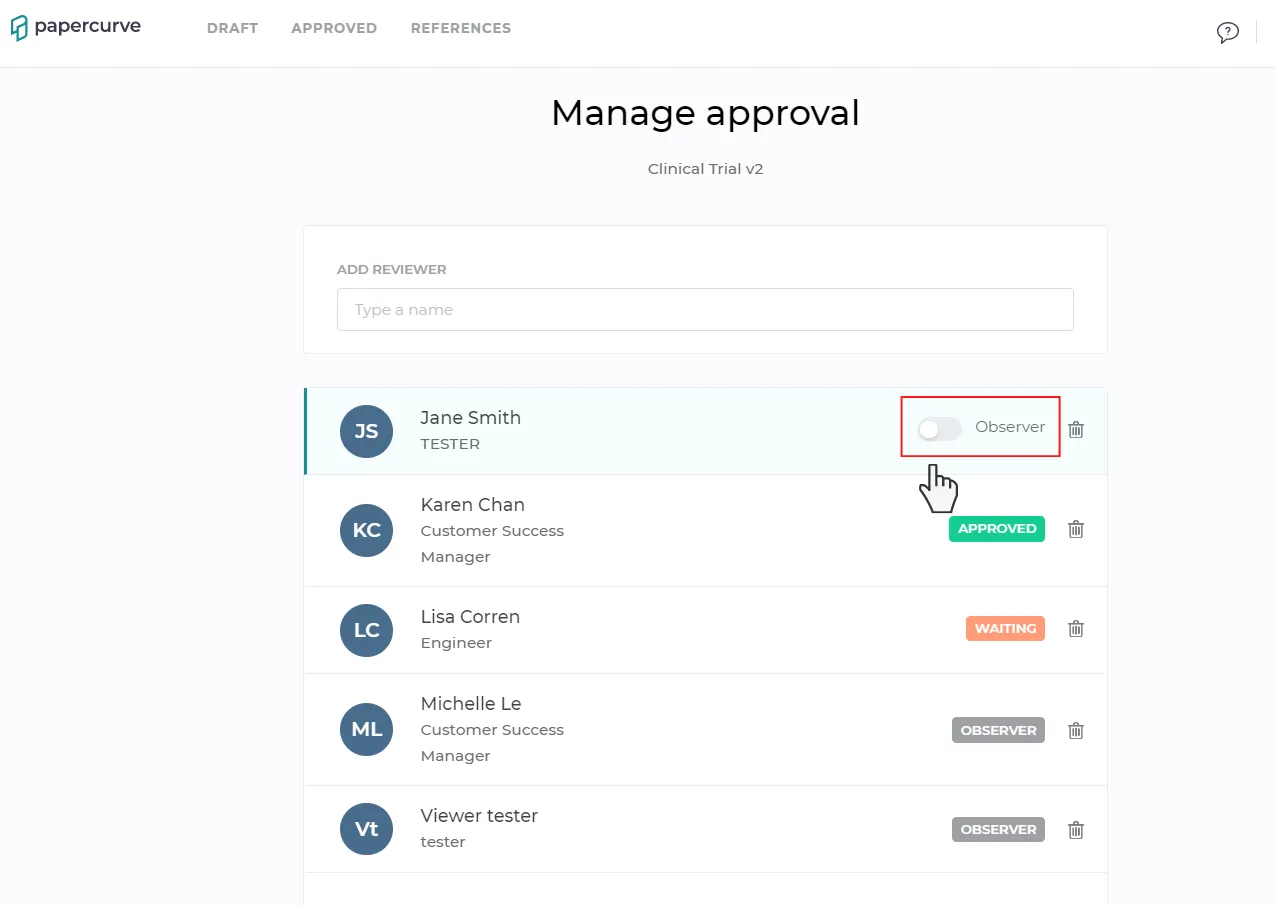
- Once all reviewers have been added, at this point you can change reviewers to observers as necessary. Click here to learn more about the Observer status and when to use it.
- Click send to trigger an email invitation to all the newly added reviewers. Note: Reviewers and Observers receive separate emails indicating their user’s role in the content.
Reviewers can be added and removed at any point of a content’s lifecycle. This is often done at different stages in a review process.
How to Remove Reviewers
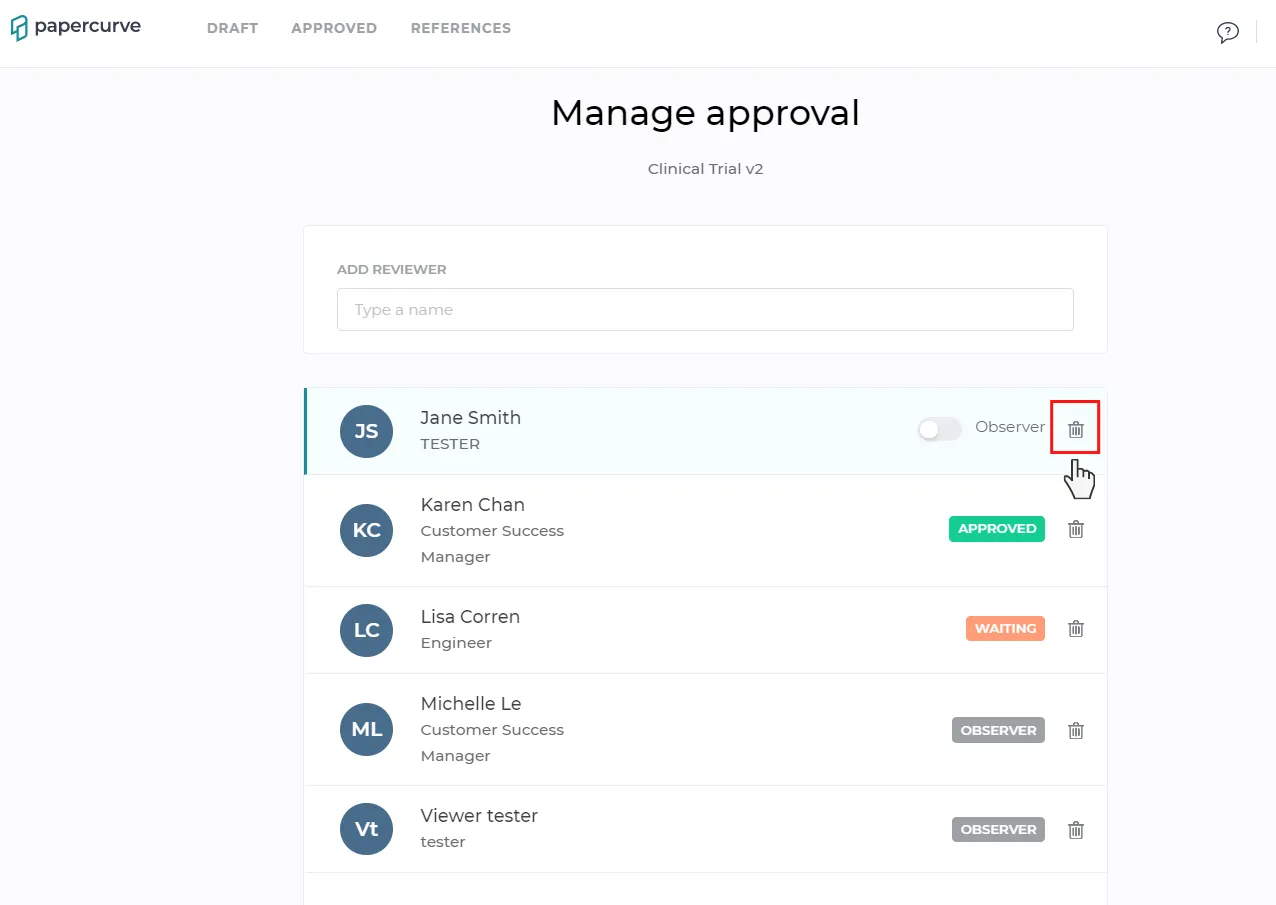
- To remove reviewers, select the trash can icon beside a user’s name. You can always add the user back by typing in their name in the search bar.
New in Papercurve 3: What if your content could answer back?Ask Paige turns any Papercurve library into an assistant for your team: what claims are cleared, which reference backs them, how the last piece said it. Grounded in your approved content, cited to the page.See what's new in Papercurve 3 →New in Papercurve 3: Your approved library already knows what you can sayAsk Paige what claims you've cleared, which reference supports each one, and how the last approved piece phrased it. Answers come only from your content, cited to the page.See what's new in Papercurve 3 →New in Papercurve 3: Find the number before you find the pageAsk Paige "which source supports the 42% reduction?" and get the reference, the page, and the exact line. Every answer is cited, so reviewers verify instead of hunting.See what's new in Papercurve 3 →New in Papercurve 3: Turn your approved content into a support deskPoint Ask Paige at a library, give it a role, and it answers questions the way your team would, from approved material only, with citations.See what's new in Papercurve 3 →New in Papercurve 3: An assistant that only knows what you've approvedAsk Paige answers from your documents and libraries, cites every page, and never invents what isn't there. No training on your content, no cross-client data.See what's new in Papercurve 3 →
Still have questions?
Chat
9am – 5pm Eastern Time, by clicking the icon in the bottom right corner of the screen.