


Observer Status
Apart from Papercurve’s User Roles and Permissions, people on your review team can also be given an Observer Status. Observers are a pseudo-role unique to individuals who require access and visibility to a project but their approval is not required. Examples of users who may be given an observer status include key opinion leaders, project managers, and senior writers in charge of overseeing a content that’s being reviewed. Users with this status have unique permissions that are further explained in this article.
Observer Permissions
Since Observers are a pseudo-role, this is a content-specific role that can be appointed within designated projects. Users with Observer status have the same capabilities as their user role minus the requirement of submitting their approval:
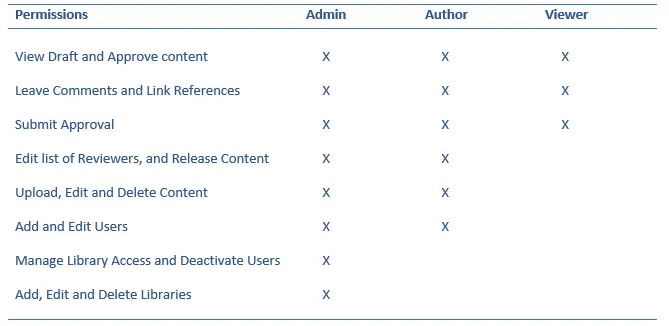
Admin and Authors with the permission to edit a review team can access the Manage Approvals page and appoint users with the Observer status as required.
Adding New Reviewers as Observers
1. When adding users to your review team, you can follow the steps highlighted in the Manage your Approvals article to navigate to the correct page.
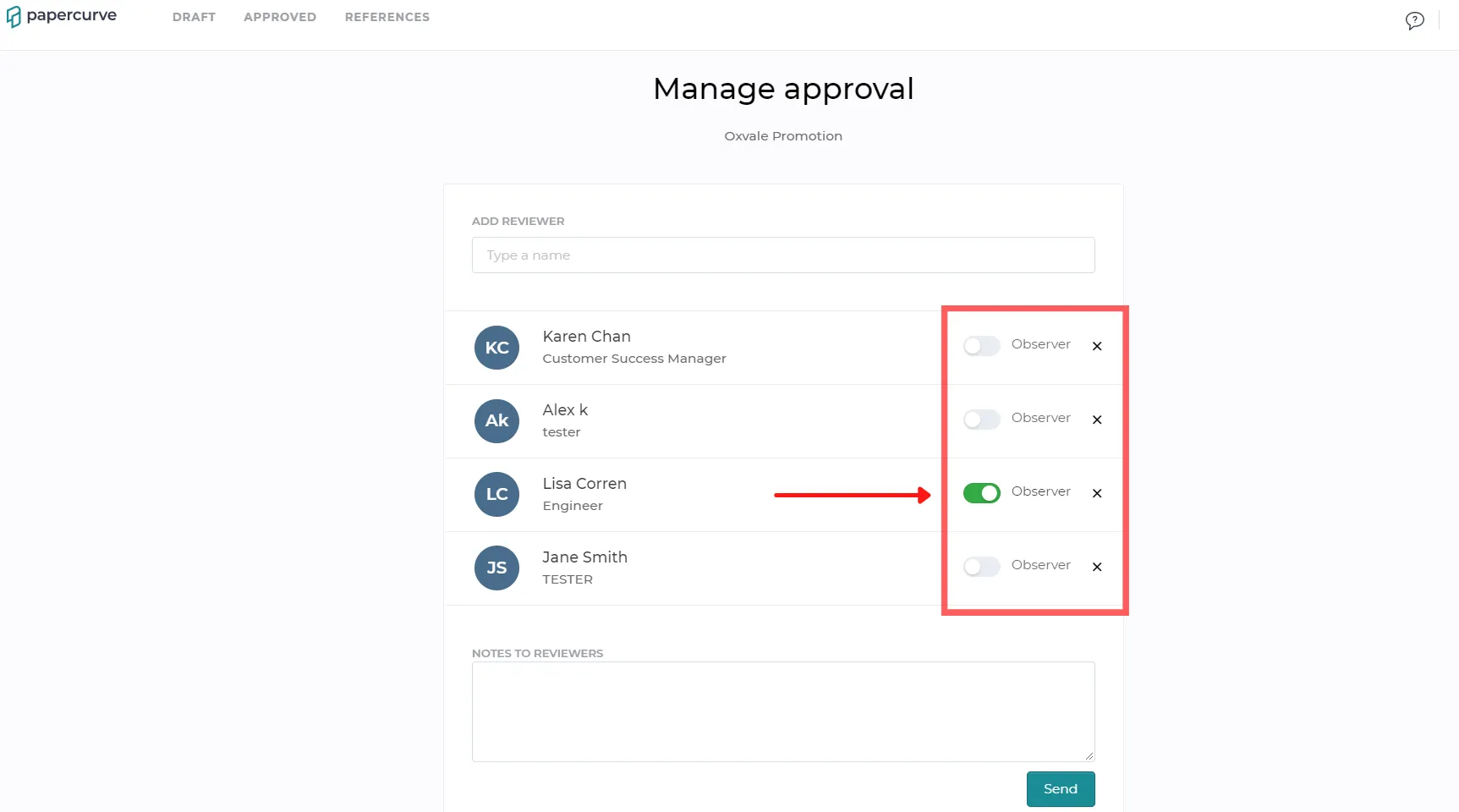
2. After typing in and selecting the reviewers to add, you will notice an Observer toggle beside each name. To appoint a reviewer as an observer, click on the toggle to turn it on.
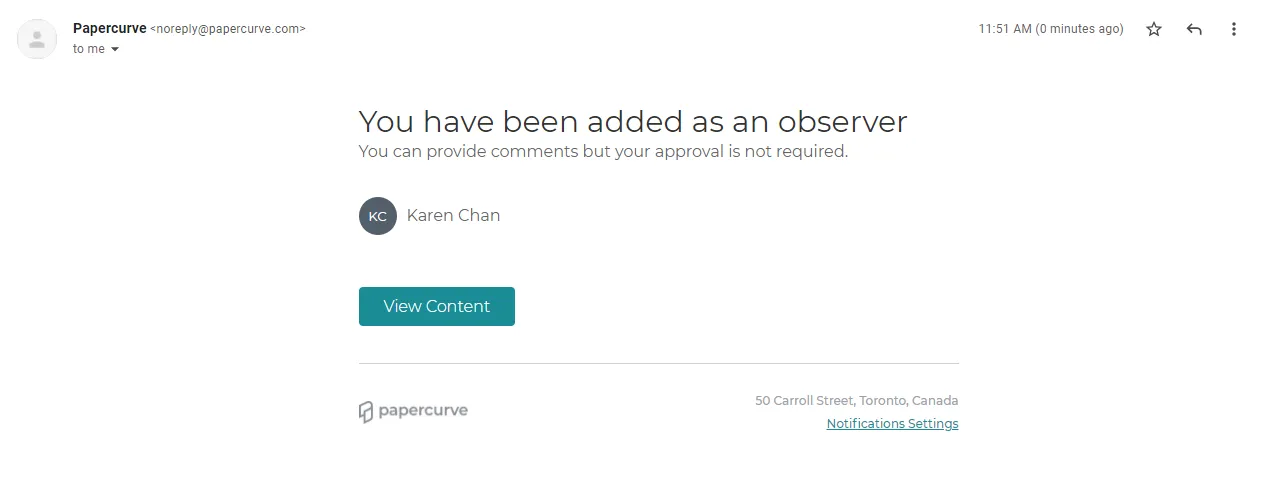
3. Reviewers who are initially added as an observer will receive a separate email indicating their invitation as an observer to the content.
Appointing Current Reviewers as Observers
1. Navigate to the Manage Approvals page by clicking on the Approvals tab on the right-hand side panel.
2. On the Manage Approvals page, users can hover their mouse over a reviewer’s status to make the observer toggle visible. Click on the toggle to change a reviewer’s status to an observer.
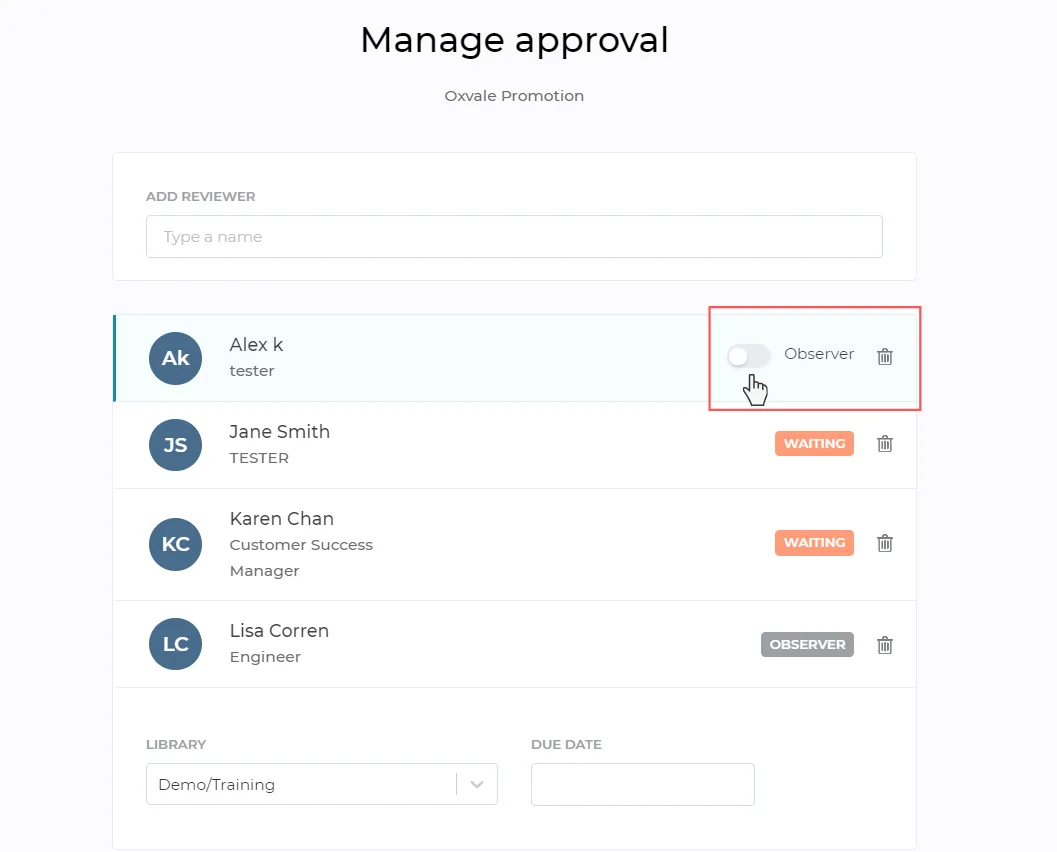 At this point, the user will not receive an email notification about their new observer status.
Any content that you are an Observer in will be moved under the “Approvals in Progress” column on your draft page.
Still have questions?
Chat
9am – 5pm Eastern Time, by clicking the icon in the bottom right corner of the screen.