


Certificate of Approval
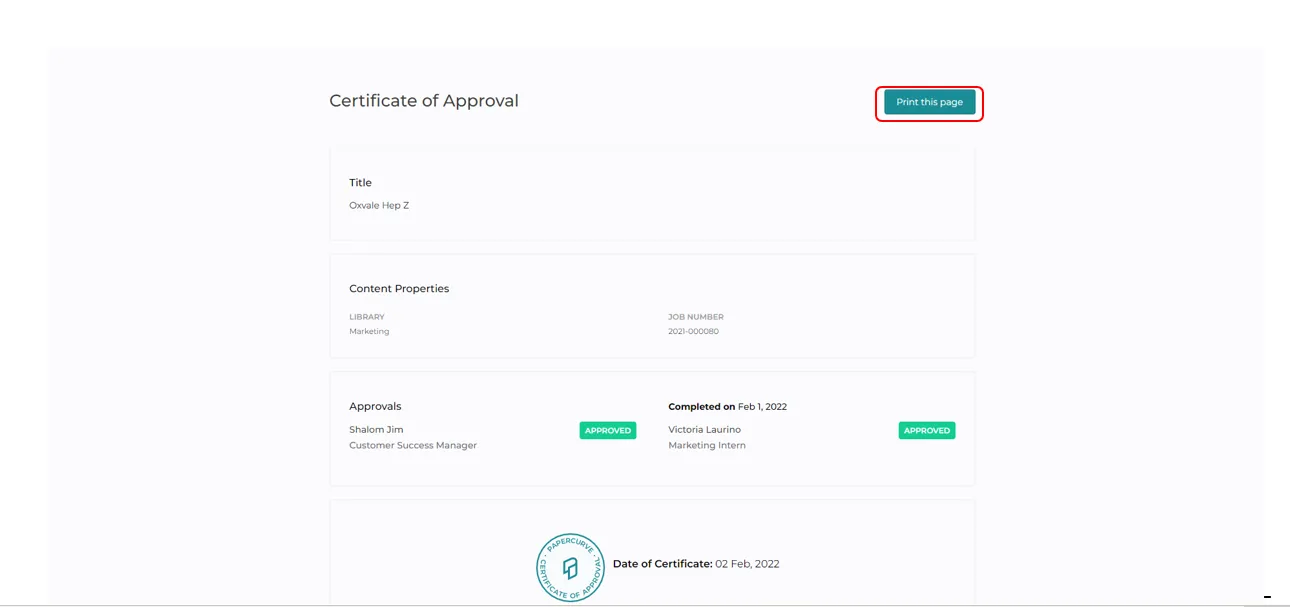
When your review team has finished approving a document, you can choose to export our Certificate of Approval as a PDF. The certificate of approval is a detailed report that includes the content properties of a document along with all of the statuses of the reviewers. This report can be accessible at any time after the content has been released.
How it Works
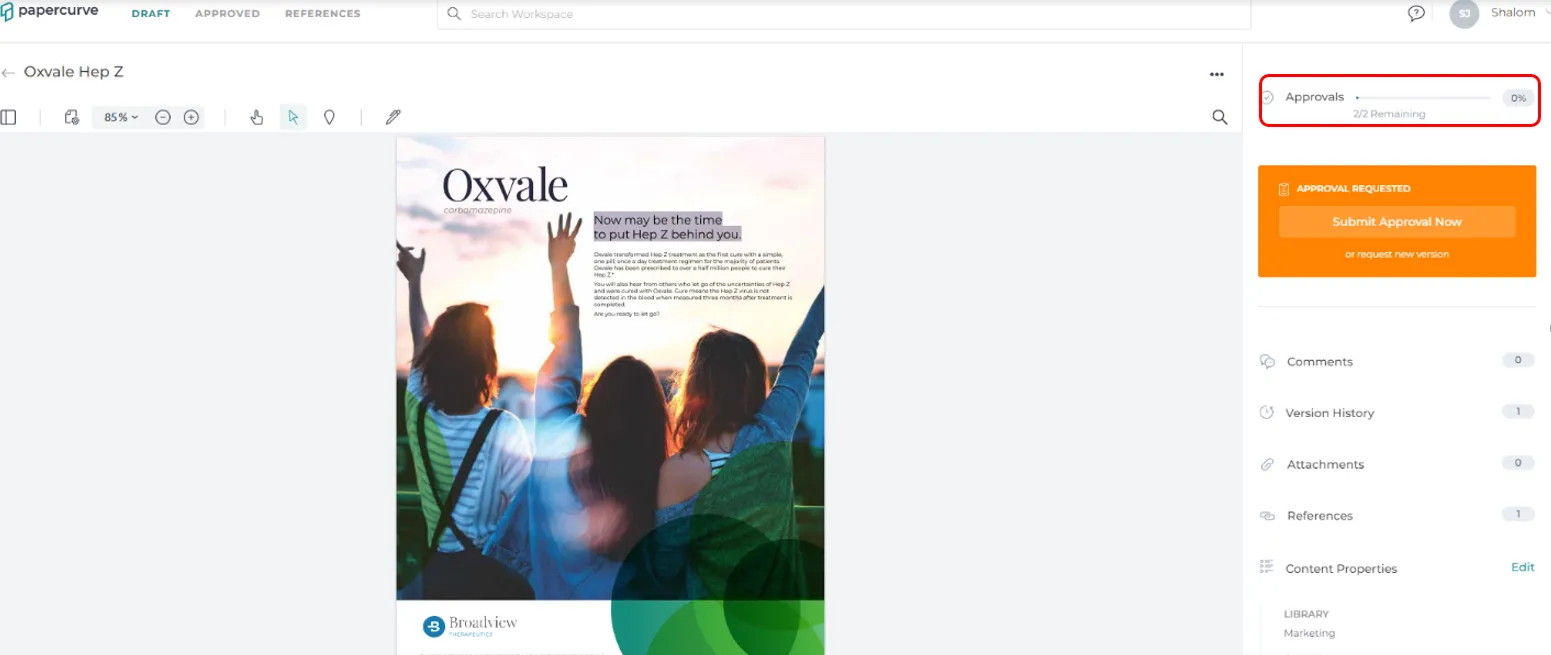
1. To begin, navigate to the Manage Approval screen by clicking on the Approvals tab in the main side panel.
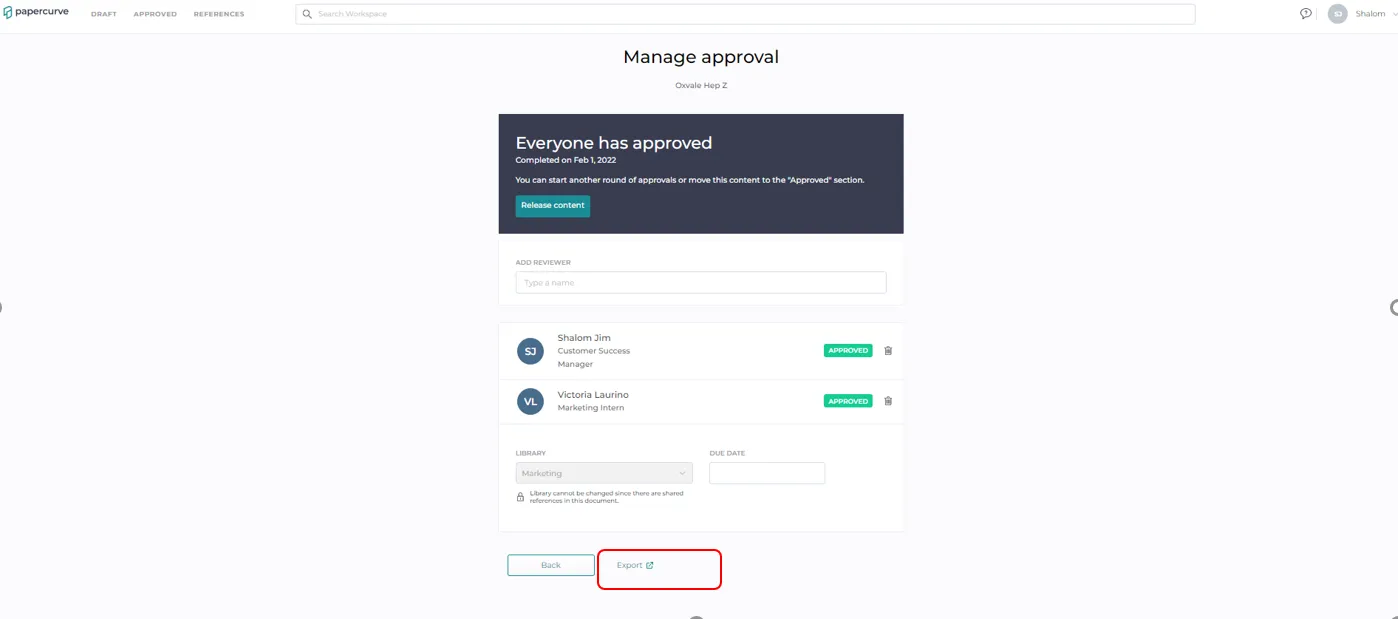
2. Scroll down to the bottom of the Manage Approval screen and click on the Export link (this is an external link, indicated by the icon with the arrow point out of the square).
3. A new tab will now open with the detailed certificate. On the top right corner, you have the option to Print this page.
4. Clicking on the Print this page button will bring up the browser’s print dialogue, you can proceed and print the report.
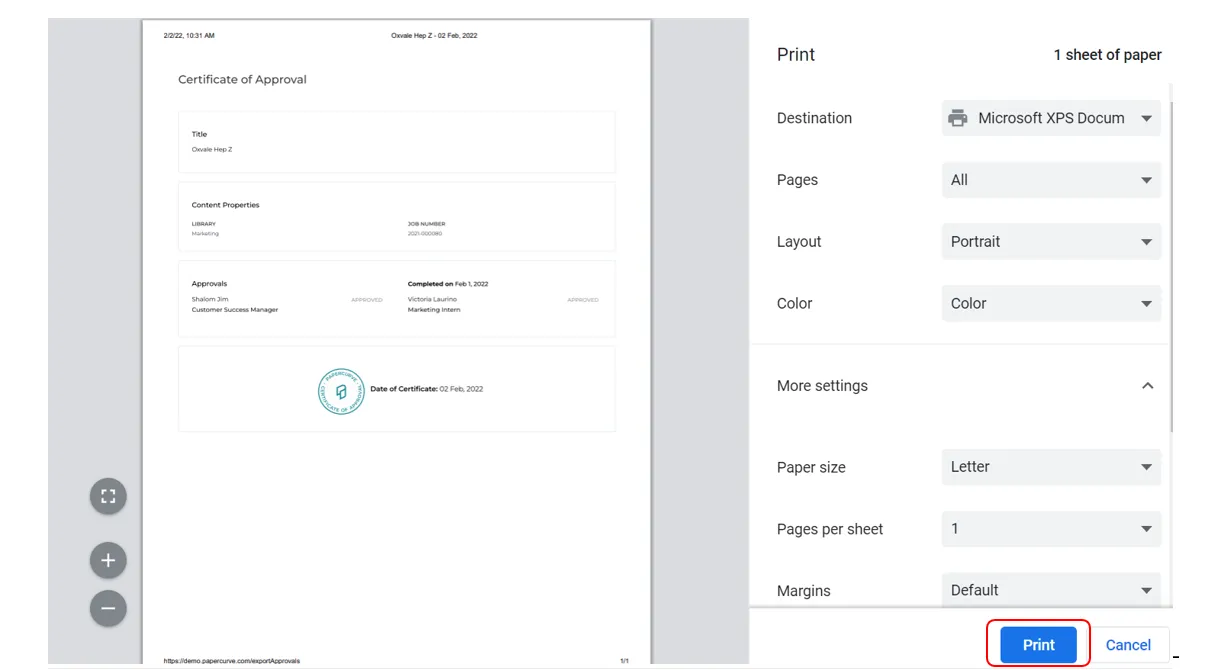
- You can also choose to save the PDF by clicking on Save as PDF under the Destination dropdown menu.
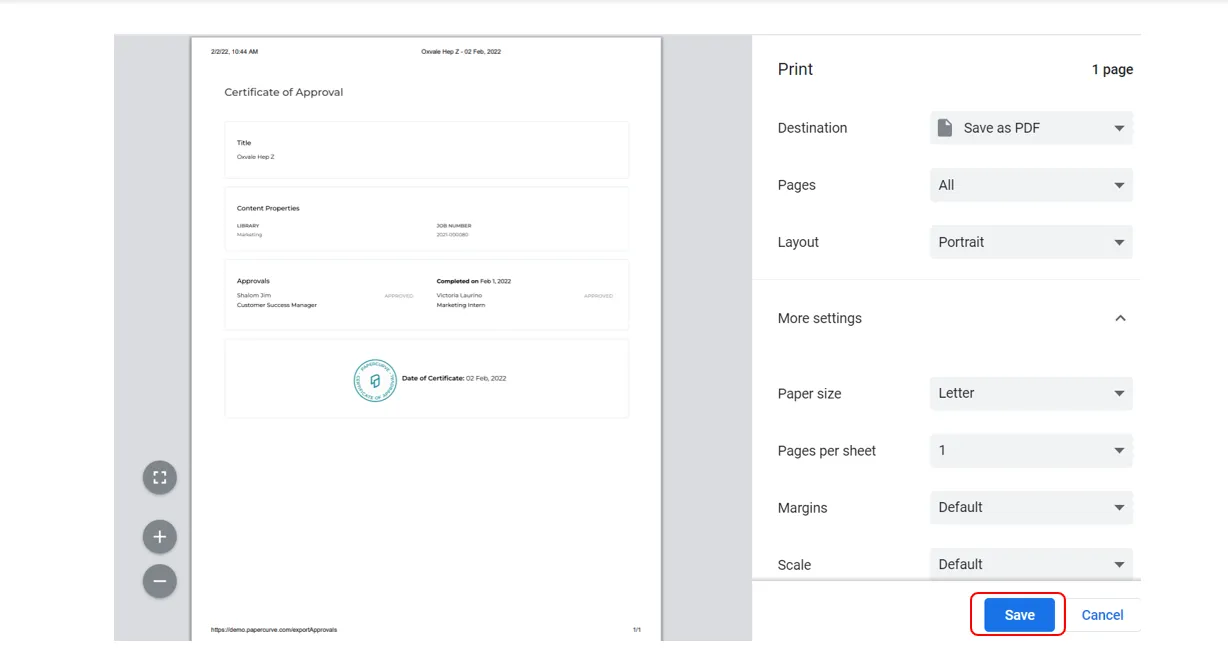
Note: The print settings may be different depending on the type of browser you are using.
Still have questions?
Chat
9am – 5pm Eastern Time, by clicking the icon in the bottom right corner of the screen.