


In addition to the commenting tools, Papercurve has expanded on the mark up capability to increase the flexibility for users to communicate feedback.
Markup Tools
1. Click the shape icon on the top toolbar to open the additional mark up tools.

2. Select the square, polygon, or arrow icon and choose a desired color.

3. You can customize the colors available using the drop down arrow next to the colored icons.
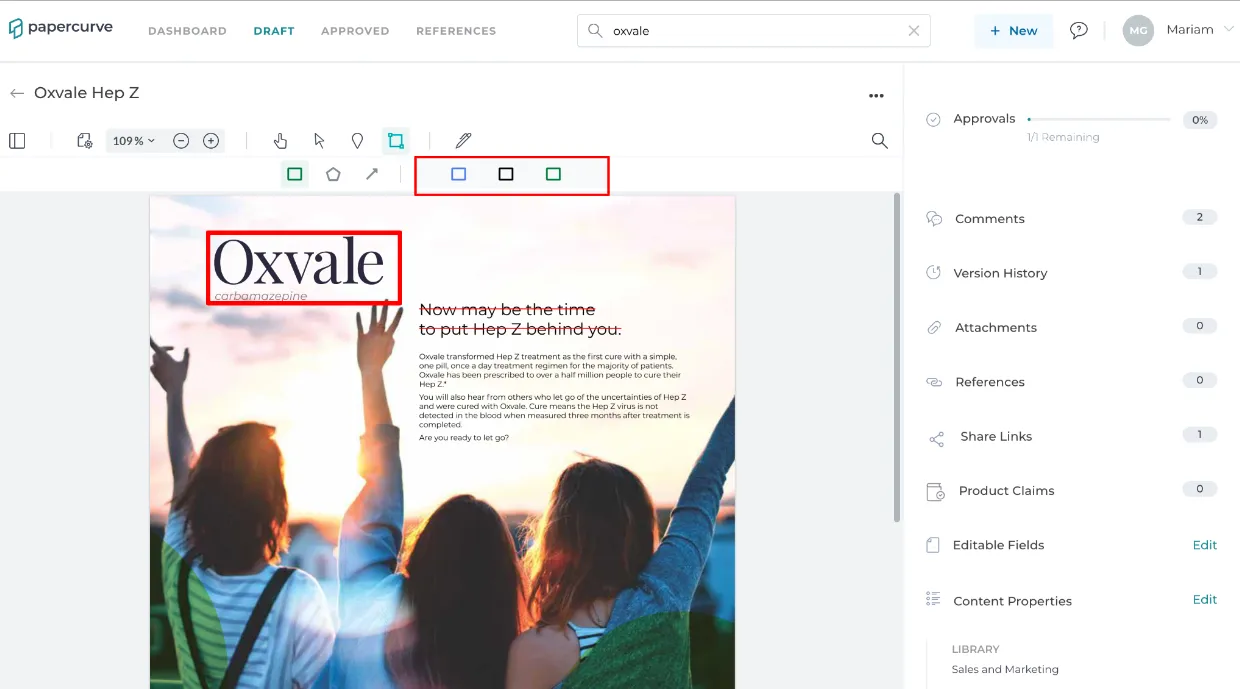

4. Then select the area that the comment applies to and then leave a comment.
Square Tool
This tool allows for the creation of a box to highlight desired regions.

Polygon tool
This tool allows for the creation of shapes with straight edges to highlight more irregular shapes and regions.

Arrow tool
This tool allows for the user to bring attention to specific parts of a document.

Strikethrough
1. Highlight the text that should be struck through.
2. Select the strikethrough icon.

3. Leave a comment for the strikethrough.

Still have questions?
Chat
9am – 5pm Eastern Time, by clicking the icon in the bottom right corner of the screen.