

Easily reorganize your CRM data and context, ensuring teams within your organization maintain separate communications.

Teams in Papercurve CRM Verified Emails
Papercurve Teams allows you to divide your CRM data and context so that teams within the organization do not overlap with their communications, campaigns, and strategies. Different teams will often have different contacts and segments.
All workspaces will have a DEFAULT team where all workspace users will have access. To manage Papercurve Teams in Papercurve CRM Verified Email, clients must request from a Papercurve Customer Success Manager to create teams and add members to the teams.
Once your Papercurve Team has been created, you have the ability to change teams.
Here’s how:
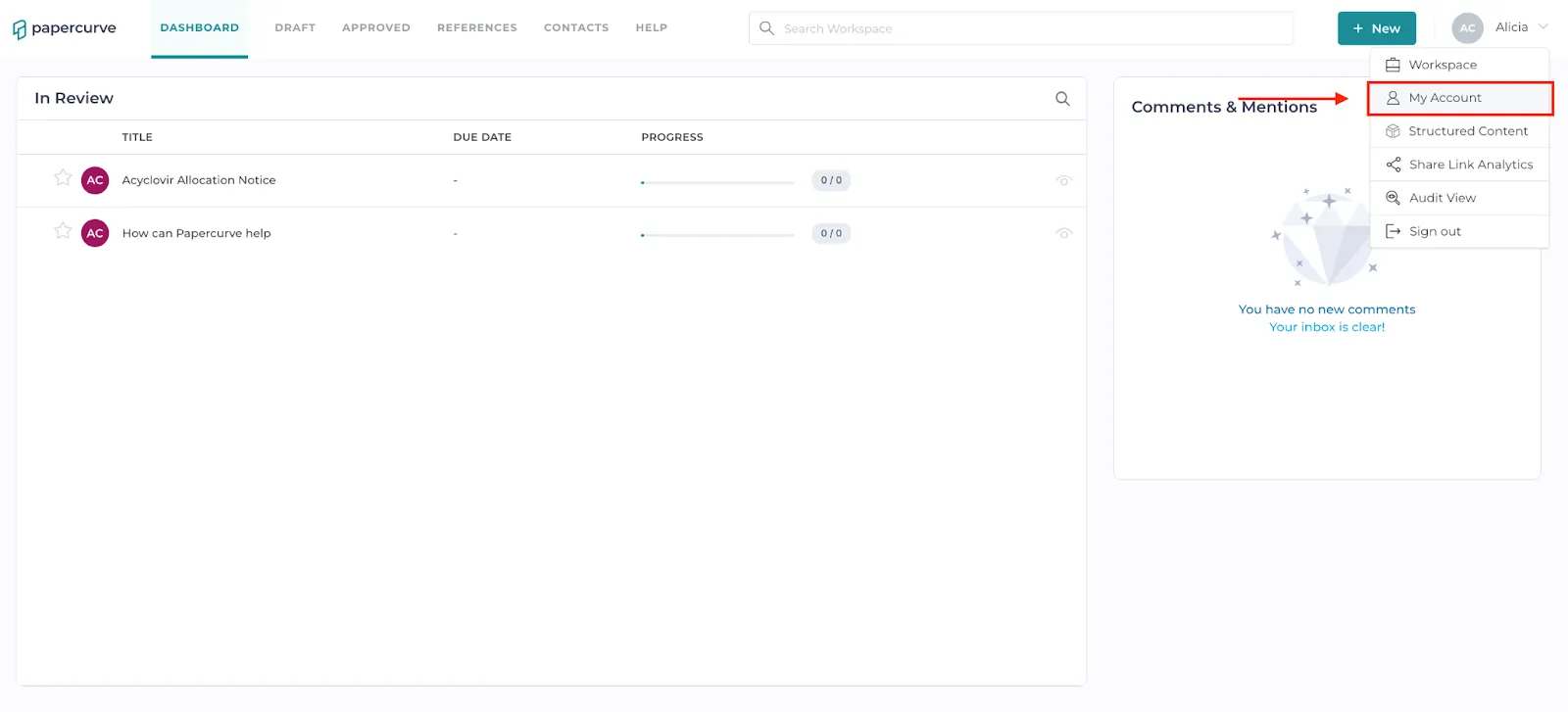
- Click your name in the top right corner and “select” My Account.
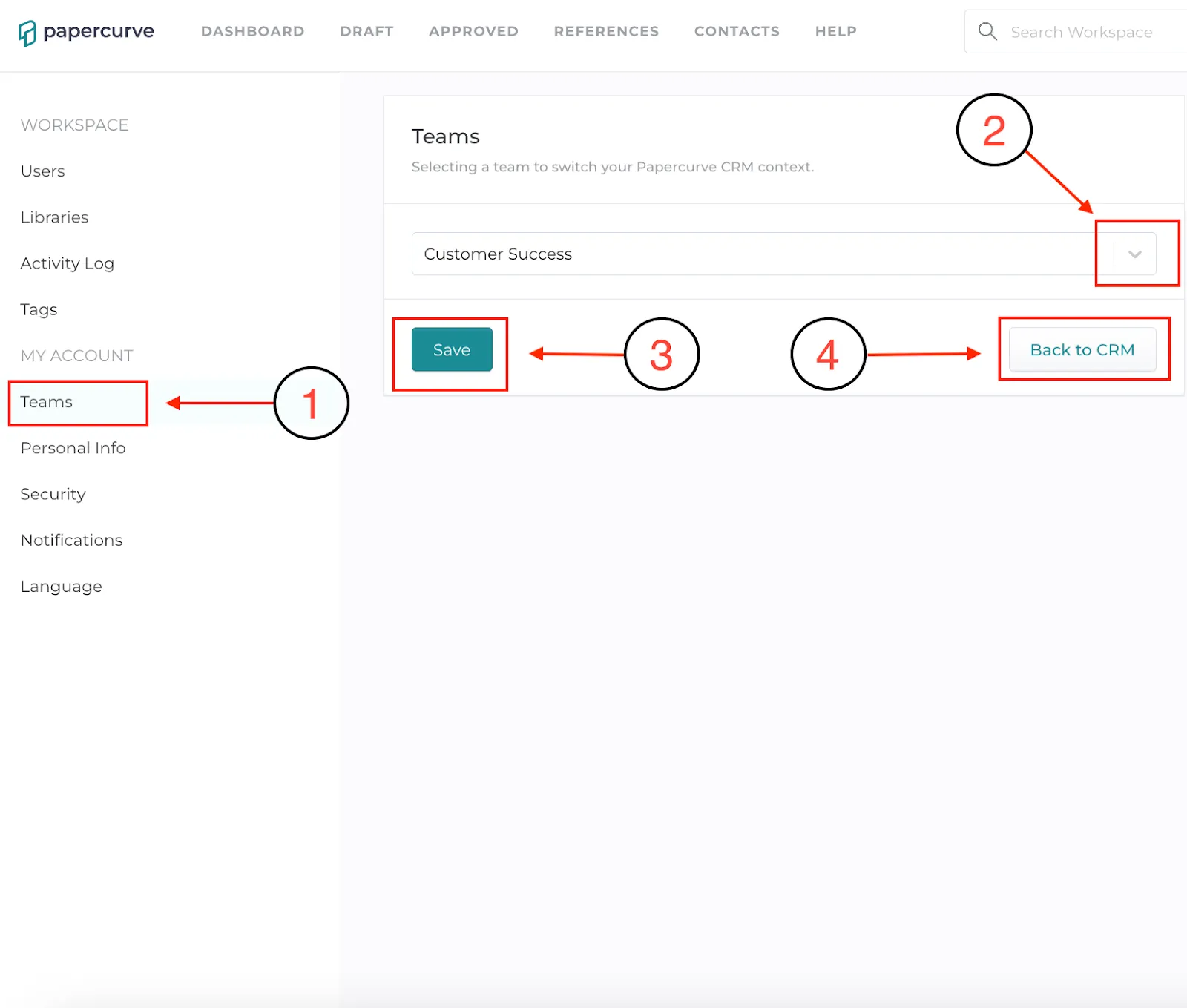
- Click “Teams” under the CRM Section. Select a team from the drop-down menu. Click “Save” and then click “Back to CRM” to head back to the Papercurve CRM Verified Email screen.
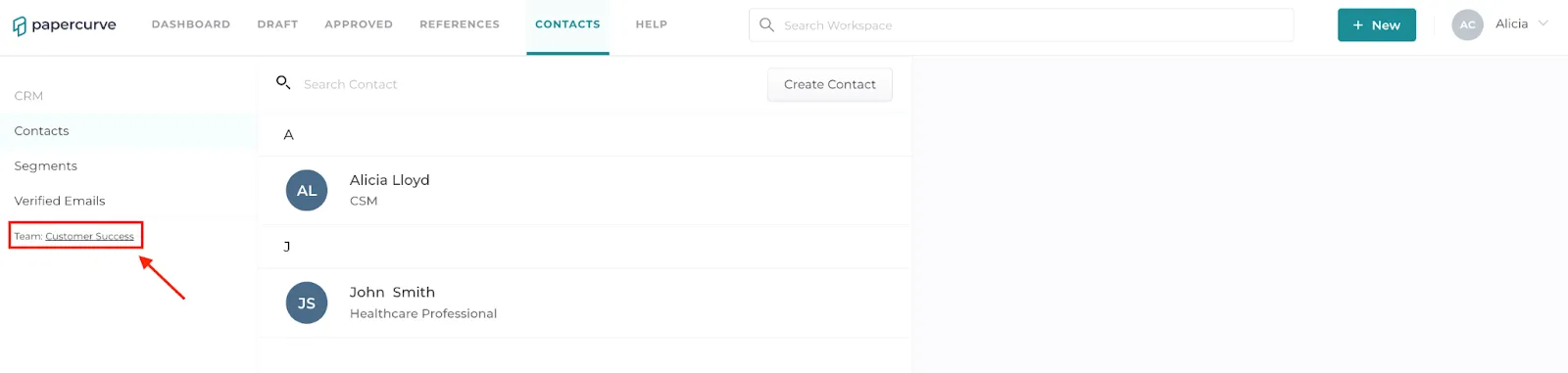
- You have the ability to see what team you are a part of under the CRM Menu.
New in Papercurve 3: What if your content could answer back?Ask Paige turns any Papercurve library into an assistant for your team: what claims are cleared, which reference backs them, how the last piece said it. Grounded in your approved content, cited to the page.See what's new in Papercurve 3 →New in Papercurve 3: Your approved library already knows what you can sayAsk Paige what claims you've cleared, which reference supports each one, and how the last approved piece phrased it. Answers come only from your content, cited to the page.See what's new in Papercurve 3 →New in Papercurve 3: Find the number before you find the pageAsk Paige "which source supports the 42% reduction?" and get the reference, the page, and the exact line. Every answer is cited, so reviewers verify instead of hunting.See what's new in Papercurve 3 →New in Papercurve 3: Turn your approved content into a support deskPoint Ask Paige at a library, give it a role, and it answers questions the way your team would, from approved material only, with citations.See what's new in Papercurve 3 →New in Papercurve 3: An assistant that only knows what you've approvedAsk Paige answers from your documents and libraries, cites every page, and never invents what isn't there. No training on your content, no cross-client data.See what's new in Papercurve 3 →
Still have questions?
Chat
9am – 5pm Eastern Time, by clicking the icon in the bottom right corner of the screen.