


Tags
Tags are the new modern folder; they replace valuable time digging though folders of miscellaneous images and documents. Users can quickly get preoccupied by information overload. Using Tags makes it easy to cut through digital clutter and focus on the information you really want. Why have document only be in one folder - when you can have an unlimited number of tags!
Tags may be added and edited before or after you content has been upload.
Adding tags
Adding tags when uploading
-
When **uploading a document** and you have filled out the **document properties**; the last step is to associate tags to the content
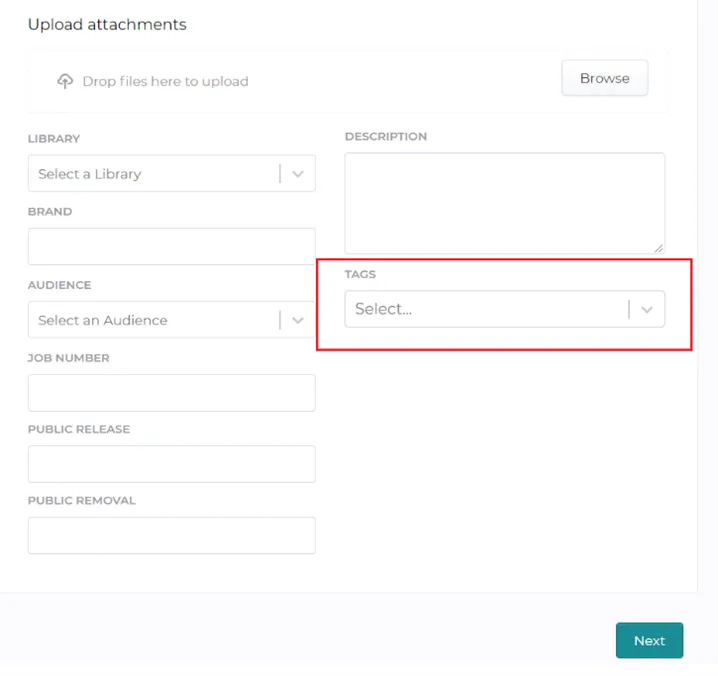
-
You may choose already made tags from the **drop-down menu** or **add new tags** that are not list
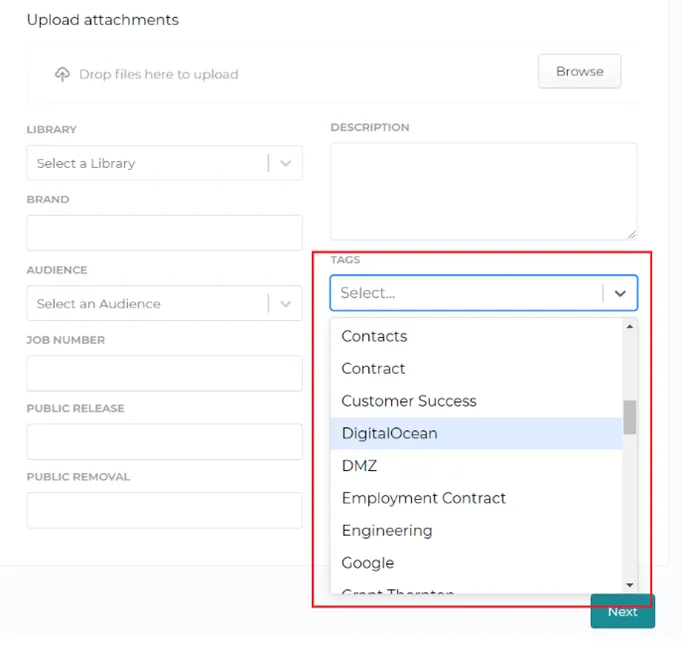
Adding tags after a document has been uploaded
-
Navigate to the right side **Summary panel** in the document you wish to add tags to
-
Under **“Content Properties”** on the bottom right corner click on **“Edit”**
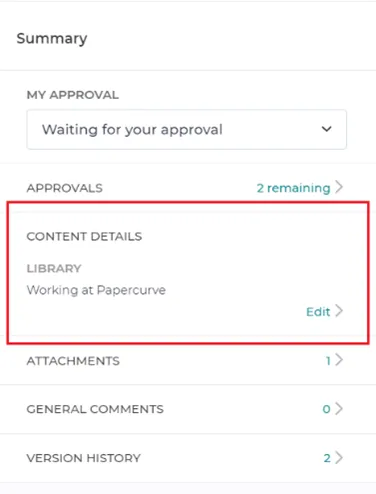
-
From there navigate to **“Tags”** and either create a new tag or select one that is already made
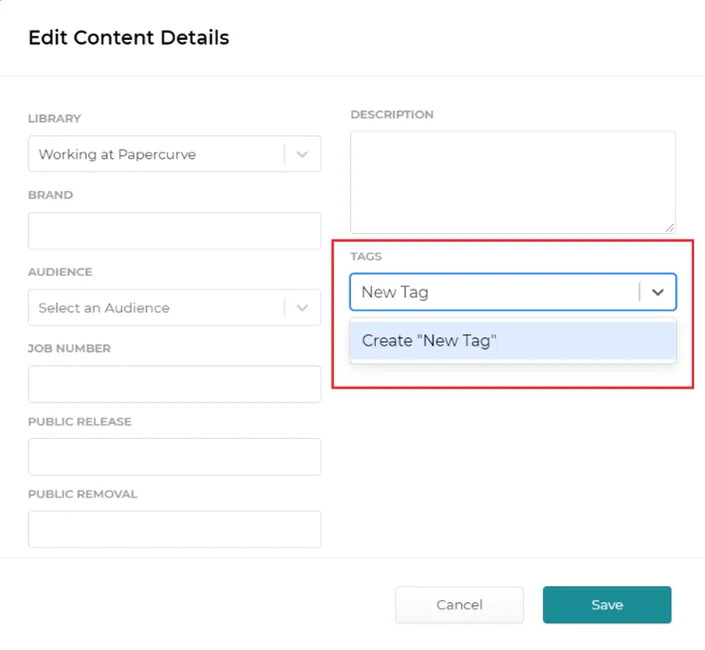
Deleting and editing tags
-
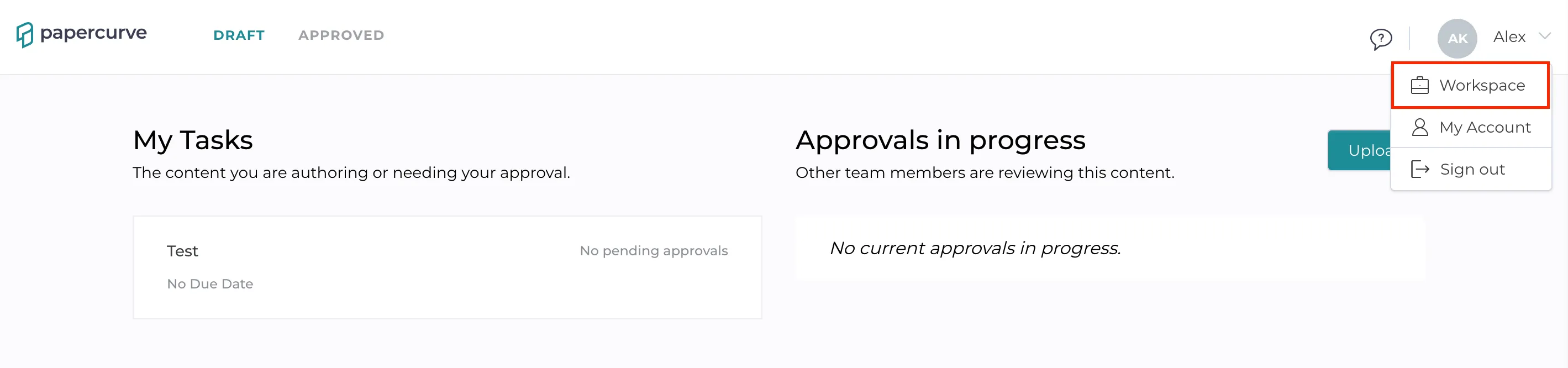
Click your name in the top right corner and you'll see options for **Workspace, My account** and **Sign out**.
-
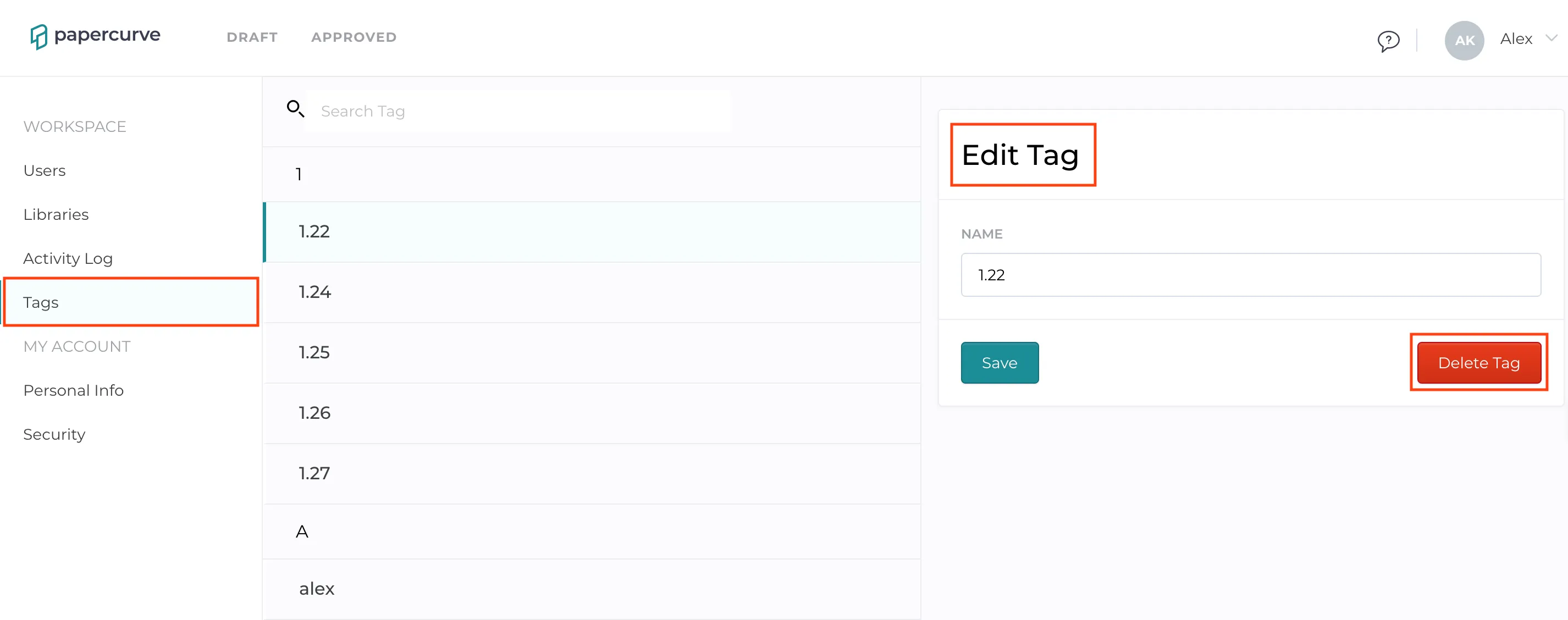
Select **Workspace** and then click **Tags** in the left side.
-
From here you can edit and delete tags
Best practice tips for tags
The tag system is truly limitless and sometimes it might be easy to create so many different tags that you completely forget which ones you’ve used. Luckily, you can avoid these issues by following these few best practices tips:
- Establish a system; figure out your high-level tags. These types of tags divide your content into the most general categories possible
- Tags should make sense to your team and be meaningful and readable
- Consider providing a reference sheet for your tagging system
Still have questions?
Chat
9am – 5pm Eastern Time, by clicking the icon in the bottom right corner of the screen.