


Table View
When viewing a library of approved content, you have the option to display results in a thumbnail view or a table view. Start by clicking “Approved” in your main navigation, then choose a library.
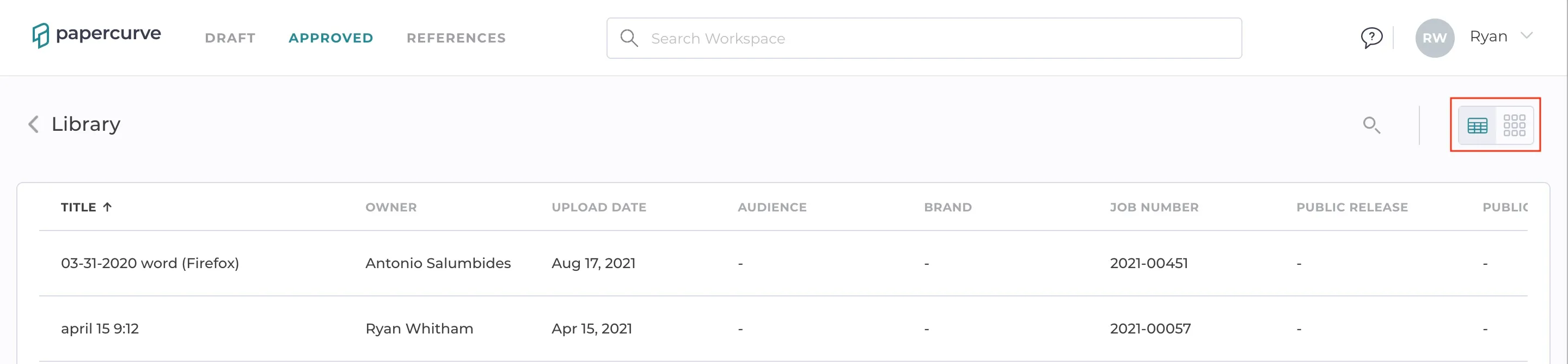
By default, you will see your content represented by thumbnails and the title. You can switch to table view by clicking the table icon on the right side of the screen. Your toggle selection is saved for future use.
Columns
The columns displayer from left to right are the title, the owner, upload date, followed by the content properties for the library. Be sure to scroll to the right to see all the columns available.
Sorting
You can sort the results for a column by clicking the column header. Clicking it again will toggle the sort order between ascending and descending. Columns for tags or multiple selection fields will not sort and clicking the column will have no function.
Search
Results can be filtered by a search term by clicking the magnifying glass icon.
Still have questions?
Chat
9am – 5pm Eastern Time, by clicking the icon in the bottom right corner of the screen.