

References Navigator allows you to easily view and upload reference documents from almost anywhere in Papercurve.

References Navigator
References Navigator allows you to easily view and upload reference documents from almost anywhere in Papercurve. Multiple reference documents can be uploaded at once. They can also be viewed and annotated without having to link them to an approval document. This means not having to wait for content to be uploaded in order to start annotating, ultimately making your reviews faster.
Accessing the References Navigator
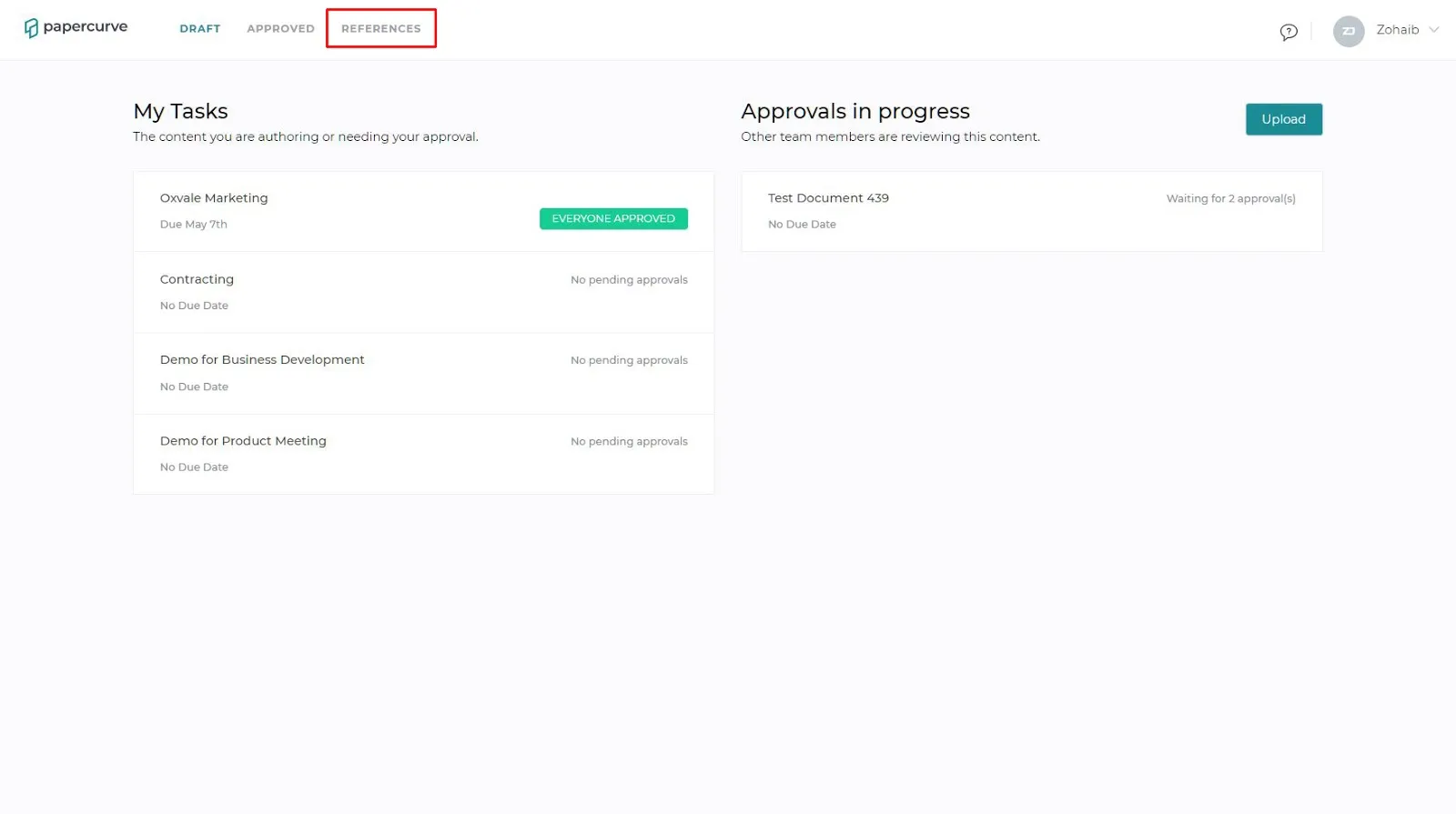
- To access the References Navigator, click on the “References” tab in the top navigation bar.
Uploading Reference Documents
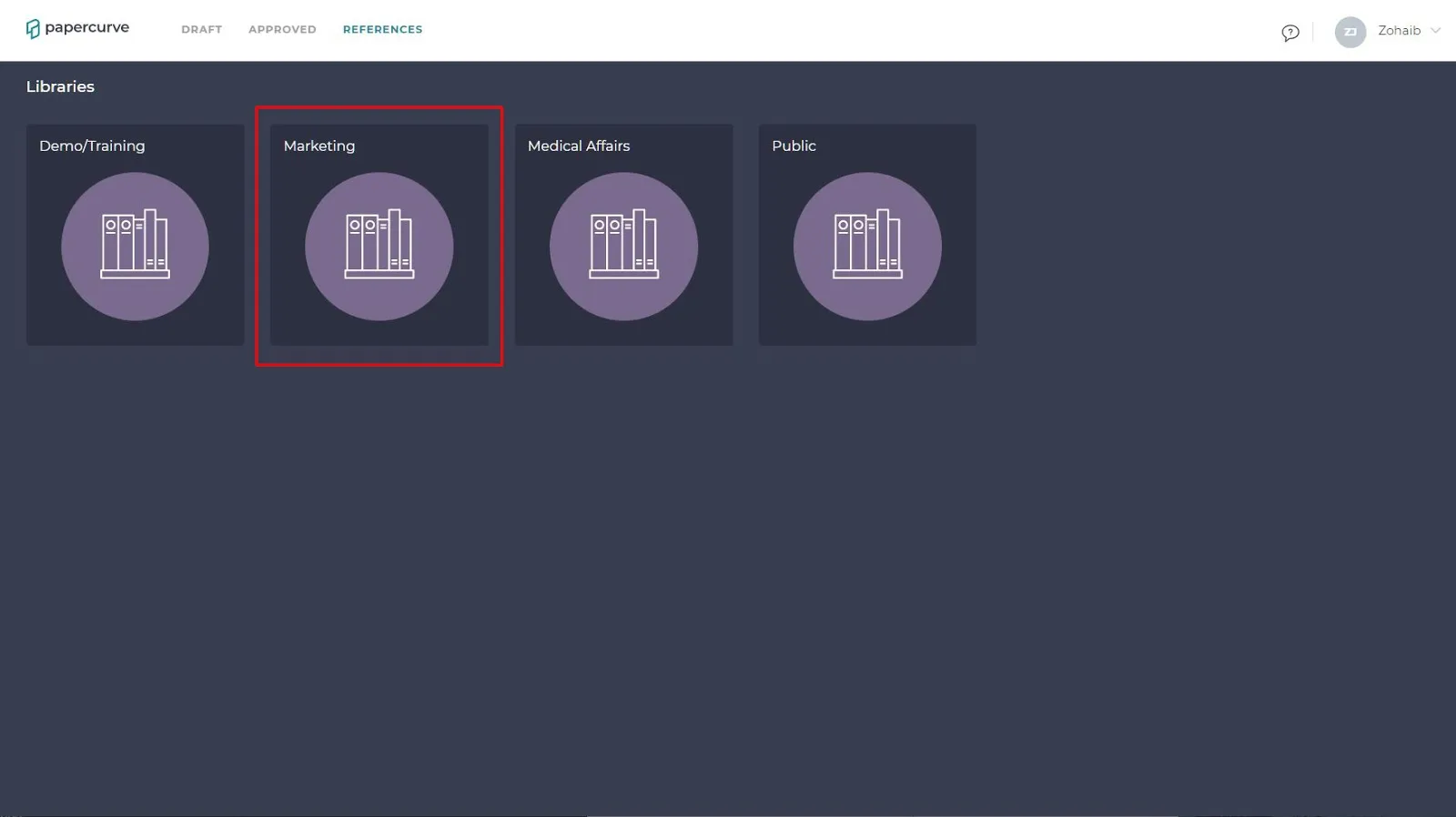
- Once on the References Navigator page, click on the library you would like to upload the reference documents in.
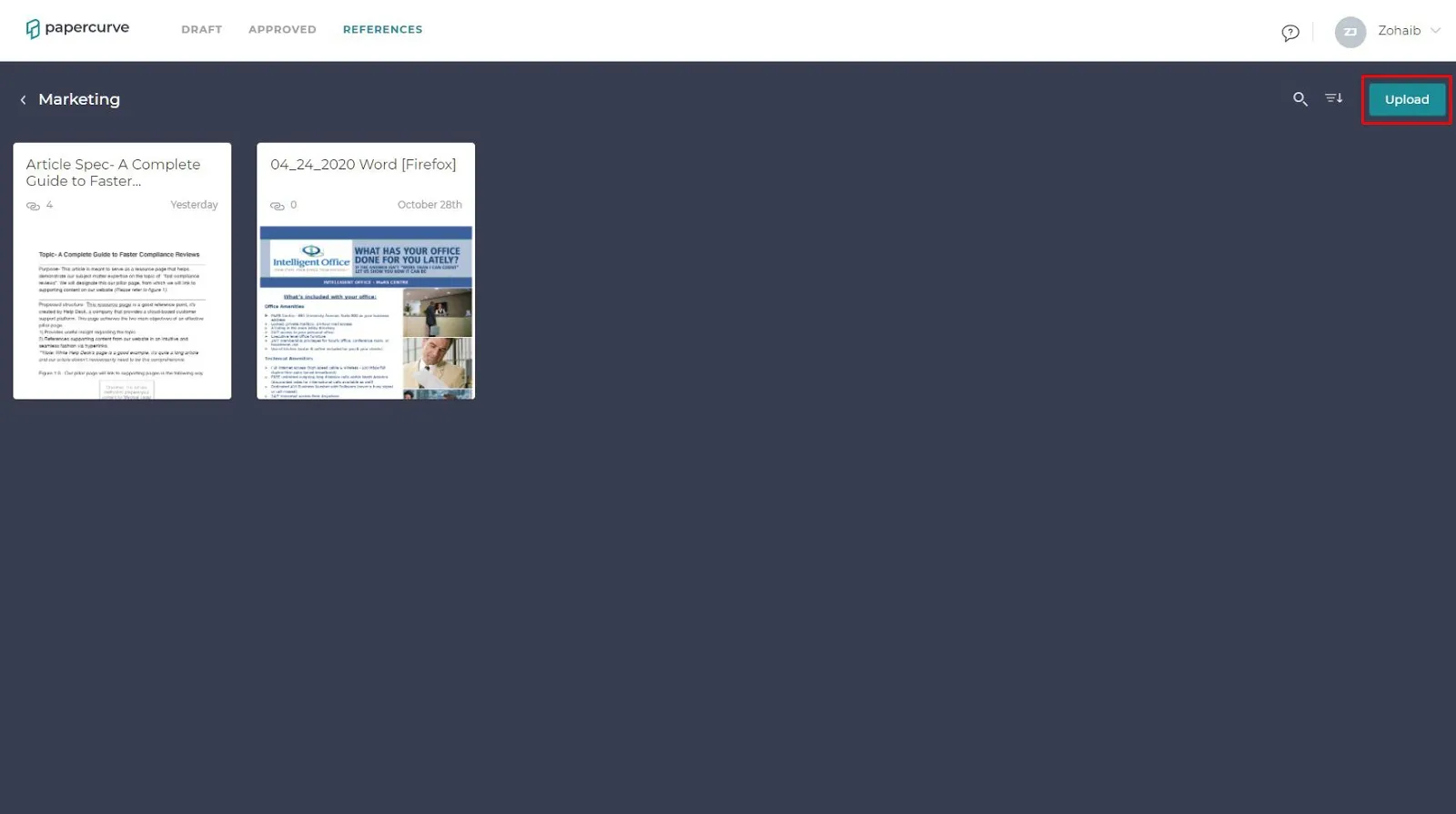
- You can upload a single reference document or multiple by clicking on the “Upload” button in the top right corner.
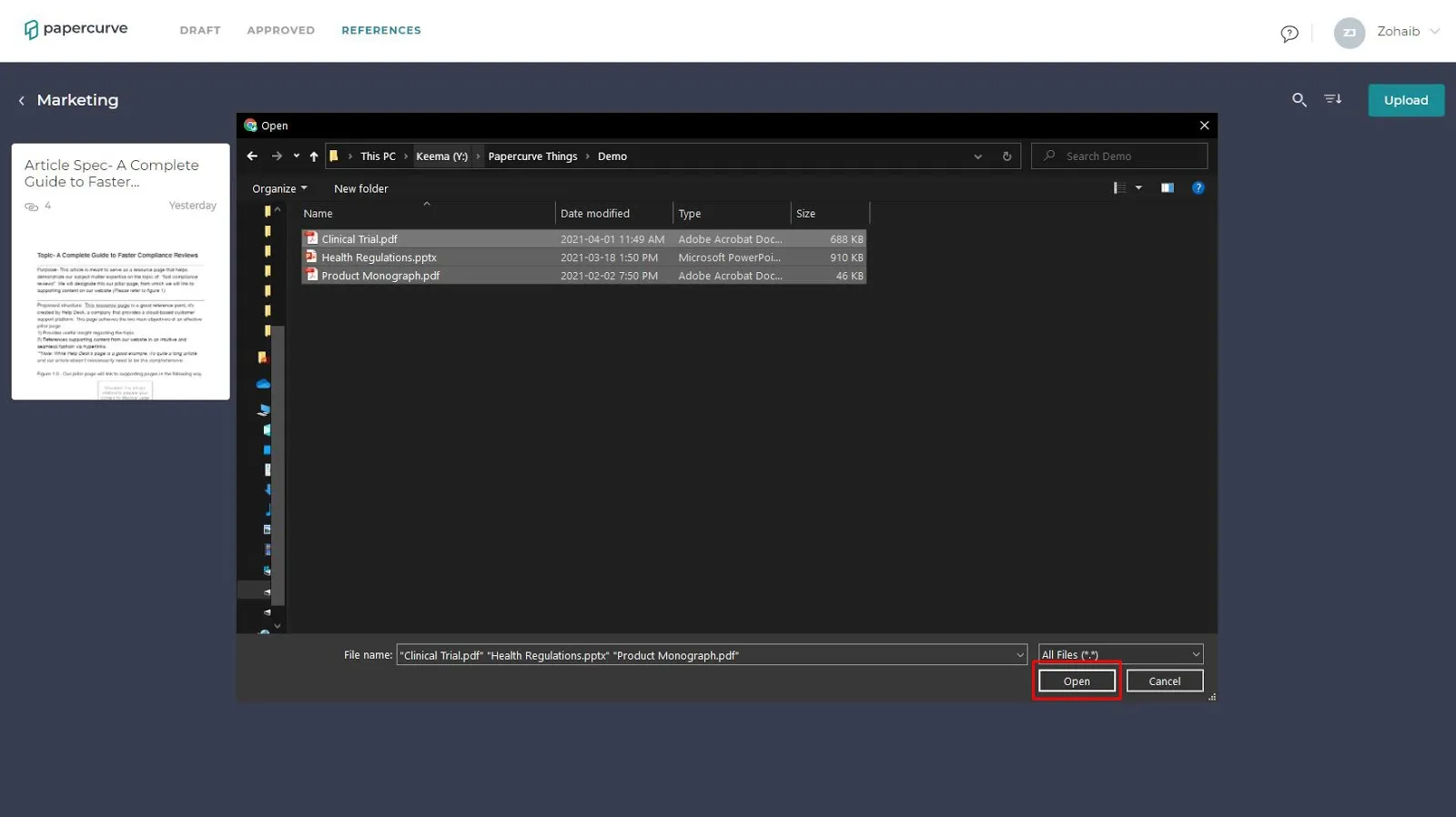
- From your file browser, select a file or files you want to upload and then click the “Done” button on Windows or the “Choose for Upload” button on Macs.
Rename/Delete Reference Document
- While in a library, select a reference document you want to Rename or delete.
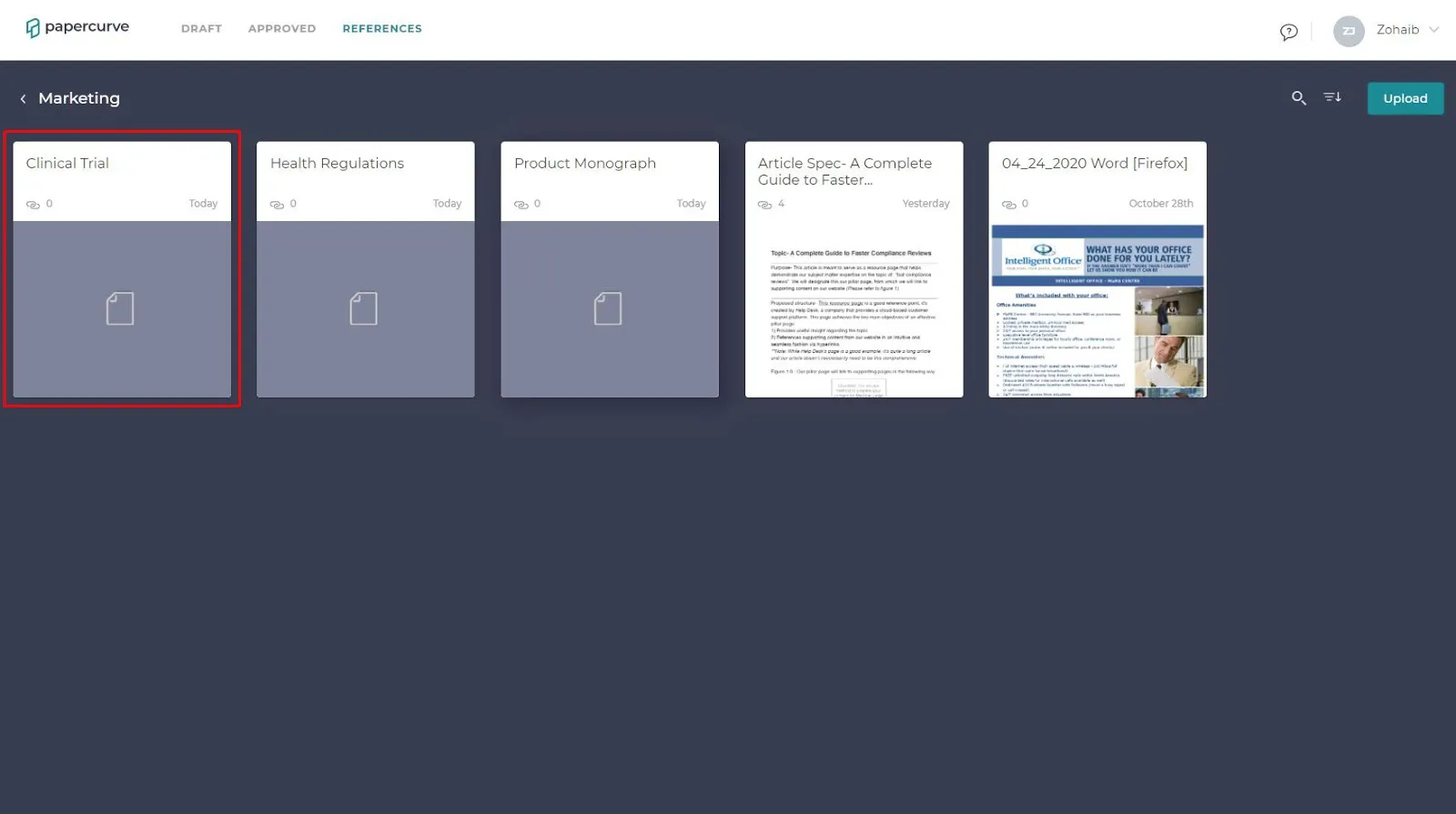
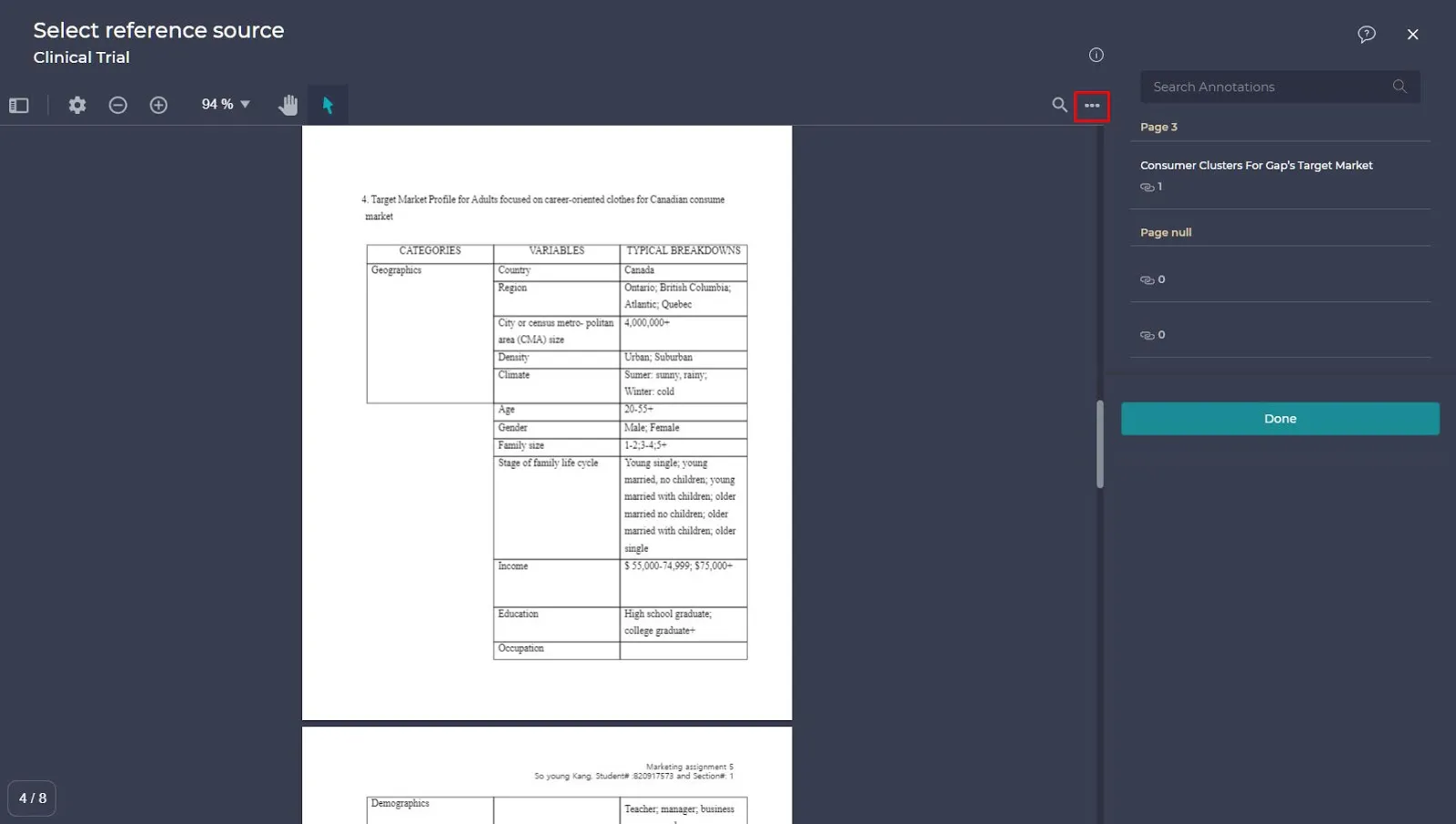
- In the reference document viewer, click on the three dots located in the far right side of the document menu.
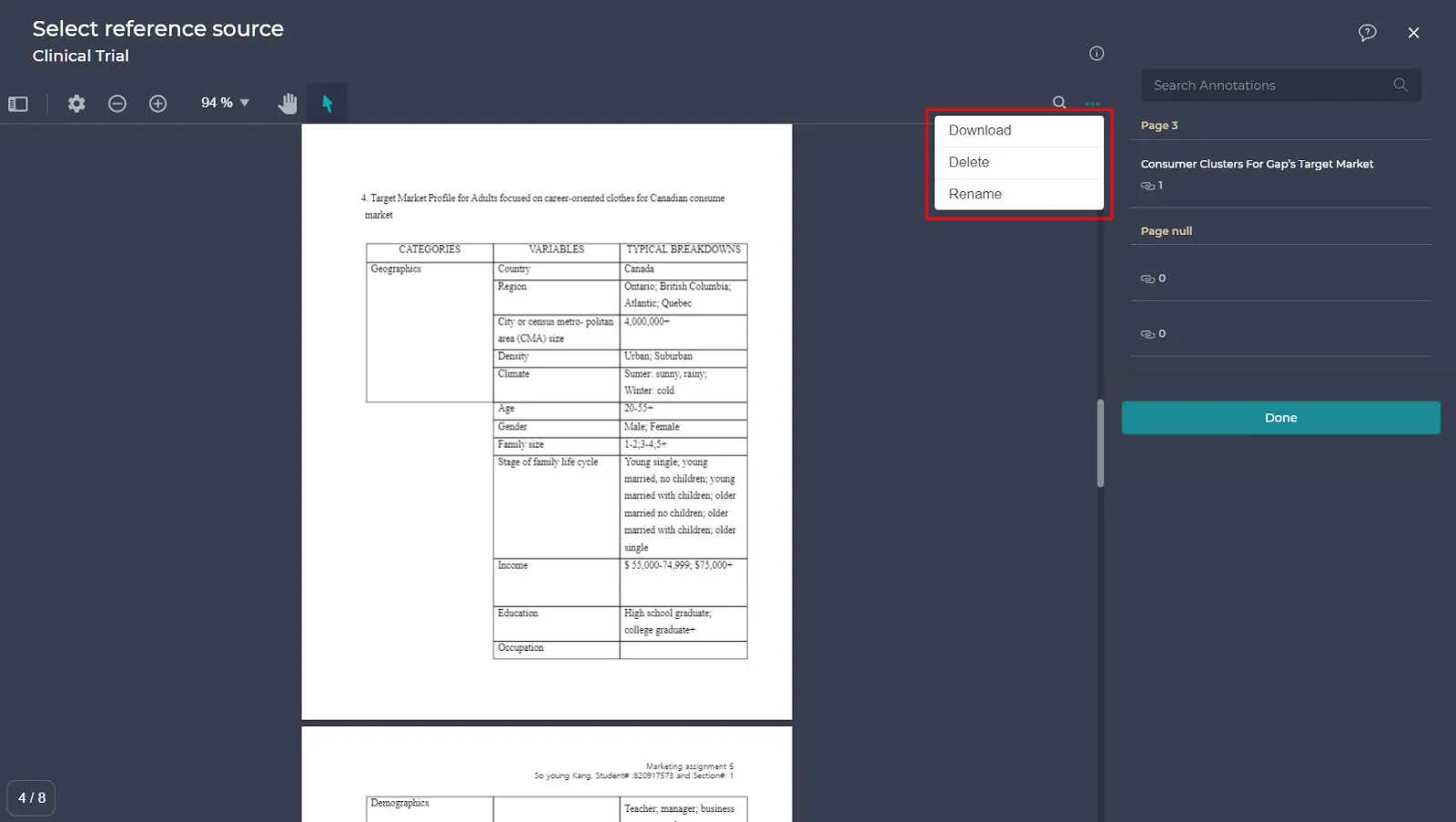
- Once you click on the three dots a drop-down menu of three options is displayed; Download, Delete and Rename.
Search/Filter content in your libraries
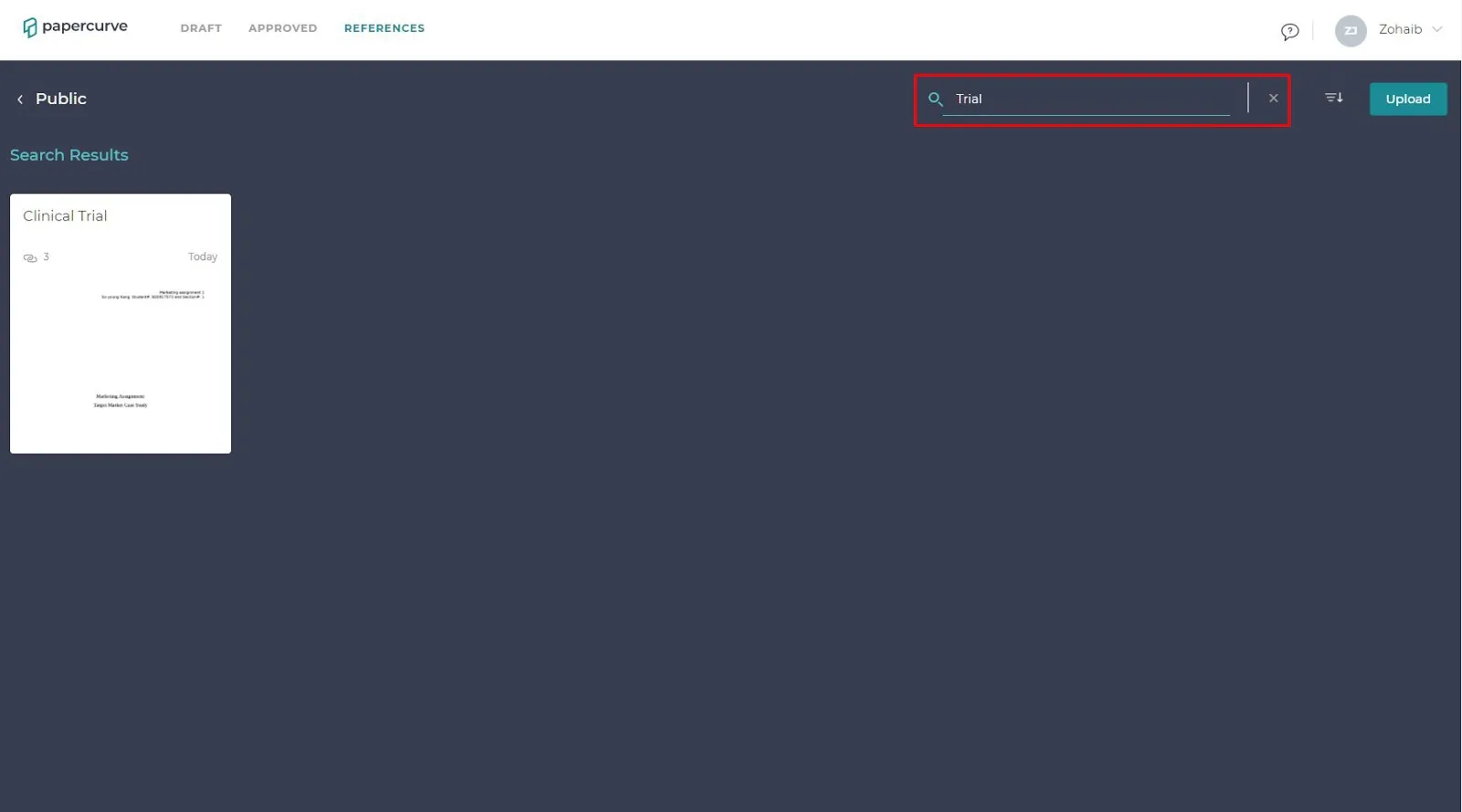
- While in a library, click on the magnifying glass icon located in the top right and enter your search terms.
2. While in a library, click on the **filter icon** located in the top right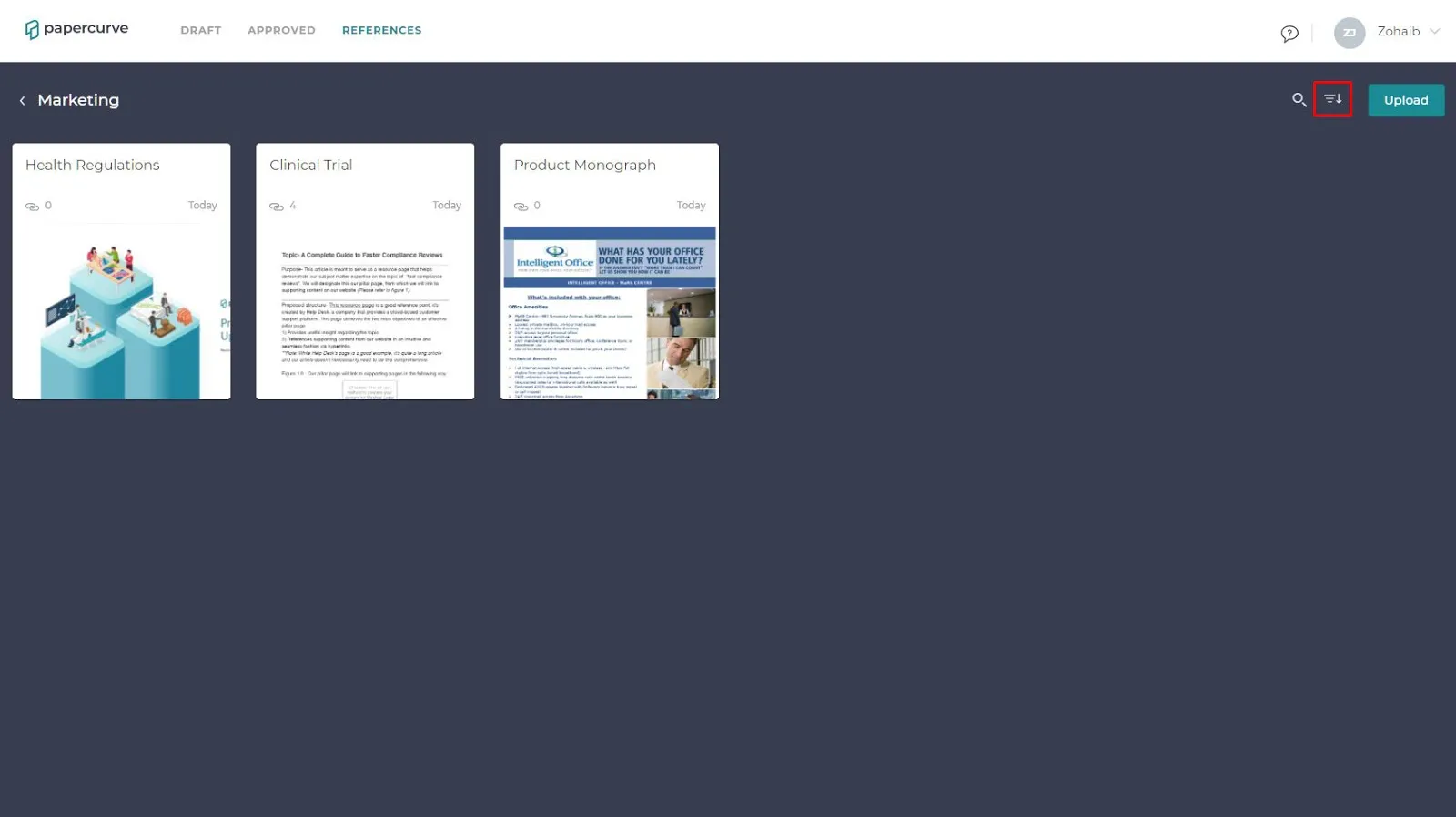
3. Once you click on the **filter icon**, a drop-down menu of four options is displayed; **A → Z, Z →A, Oldest → Newest, and Newest → Oldest.**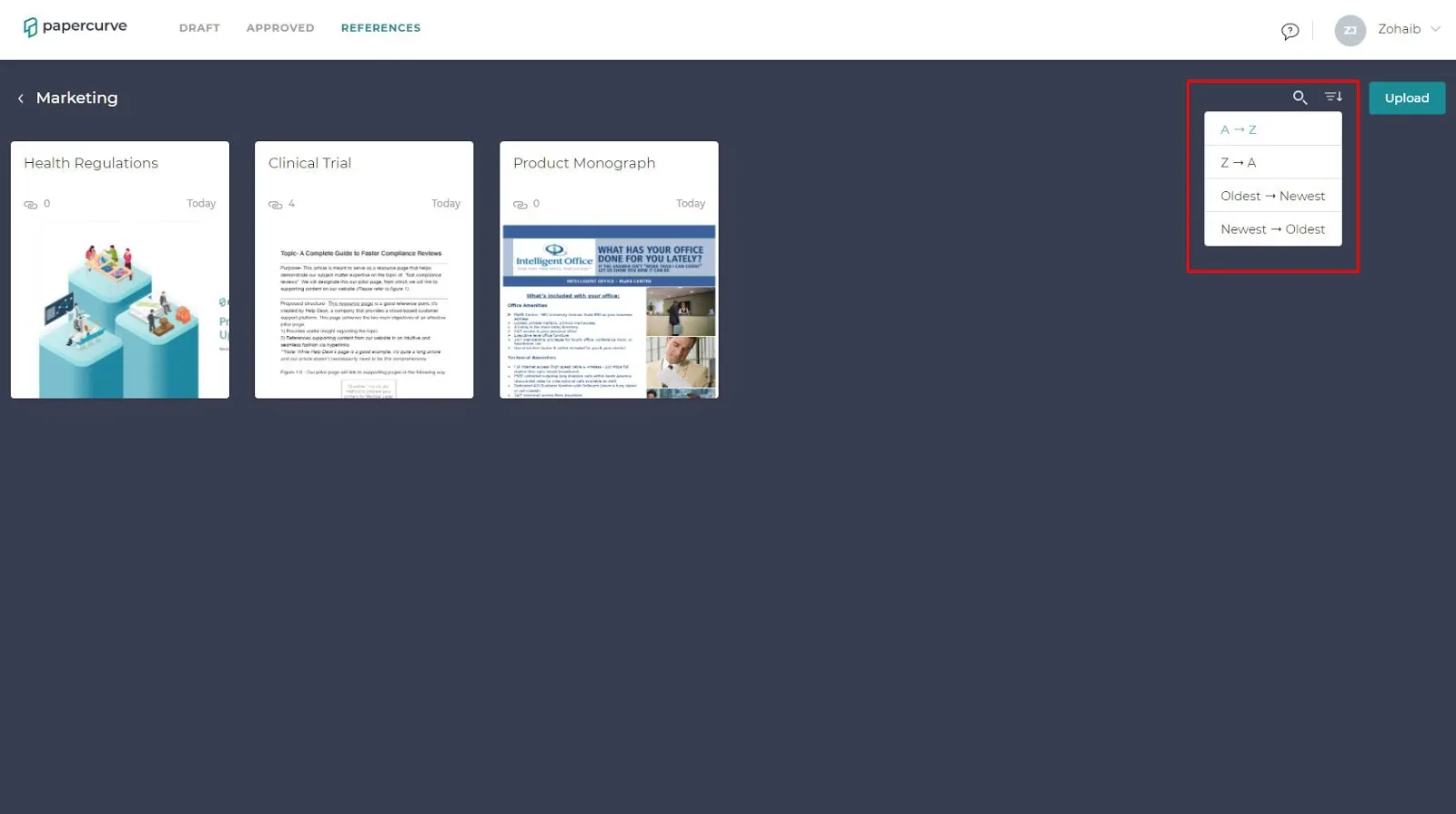
New in Papercurve 3: What if your content could answer back?Ask Paige turns any Papercurve library into an assistant for your team: what claims are cleared, which reference backs them, how the last piece said it. Grounded in your approved content, cited to the page.See what's new in Papercurve 3 →New in Papercurve 3: Your approved library already knows what you can sayAsk Paige what claims you've cleared, which reference supports each one, and how the last approved piece phrased it. Answers come only from your content, cited to the page.See what's new in Papercurve 3 →New in Papercurve 3: Find the number before you find the pageAsk Paige "which source supports the 42% reduction?" and get the reference, the page, and the exact line. Every answer is cited, so reviewers verify instead of hunting.See what's new in Papercurve 3 →New in Papercurve 3: Turn your approved content into a support deskPoint Ask Paige at a library, give it a role, and it answers questions the way your team would, from approved material only, with citations.See what's new in Papercurve 3 →New in Papercurve 3: An assistant that only knows what you've approvedAsk Paige answers from your documents and libraries, cites every page, and never invents what isn't there. No training on your content, no cross-client data.See what's new in Papercurve 3 →
Still have questions?
Chat
9am – 5pm Eastern Time, by clicking the icon in the bottom right corner of the screen.