


The Papercurve download tool allows you to export a hard copy of your content with or without your comments.
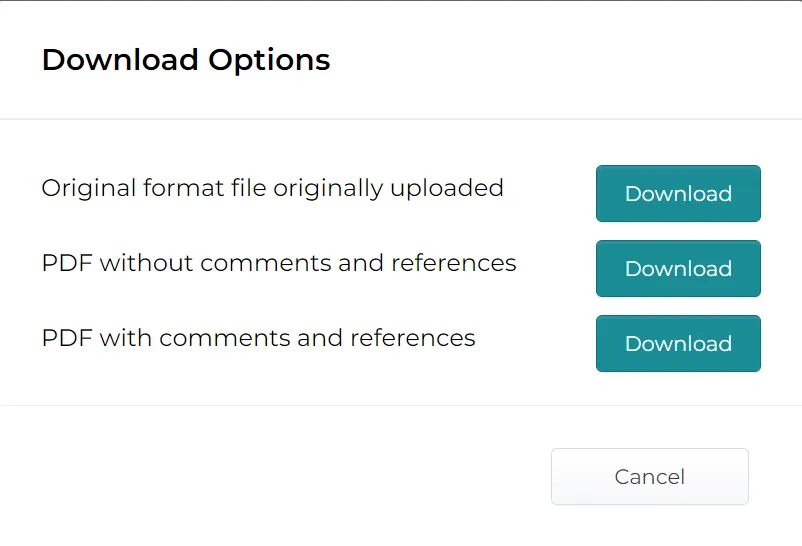
The different types of download options include:
· Original file source without comments
· PDF without comments and references
· PDF with comments and references
How to access the download options
-
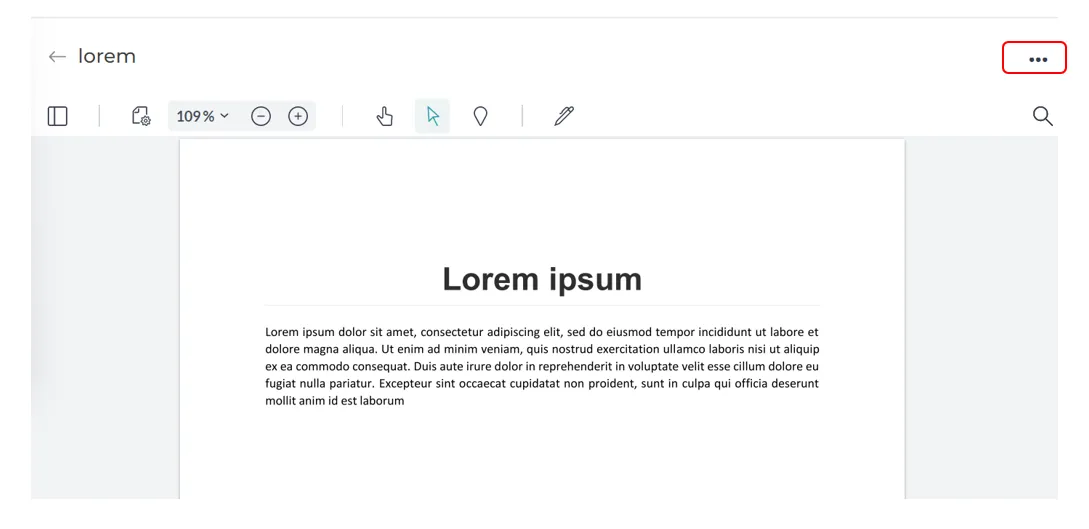
To access the three download options,, first you must select the content that you wish to work on. From there, click on the **three dots** located on the top right bar of your content:
-
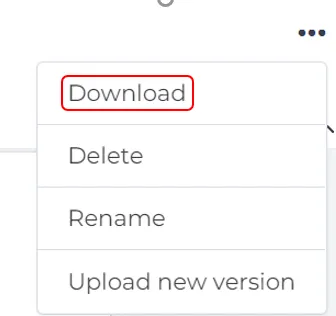
From here, select “Download” and then select how you would like to download your content:
Downloading a PDF with Comments
Viewing in Adobe
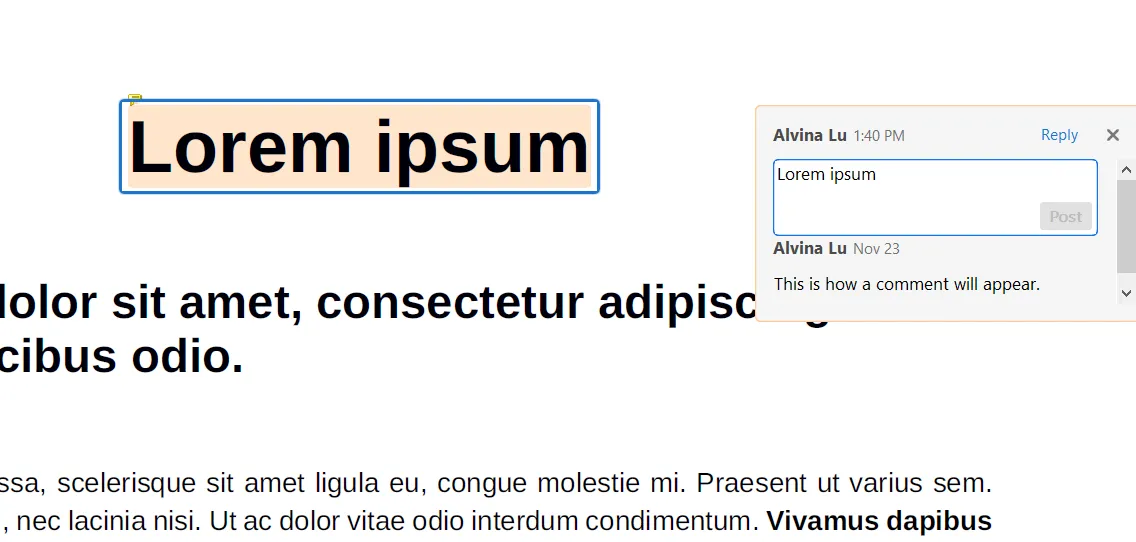
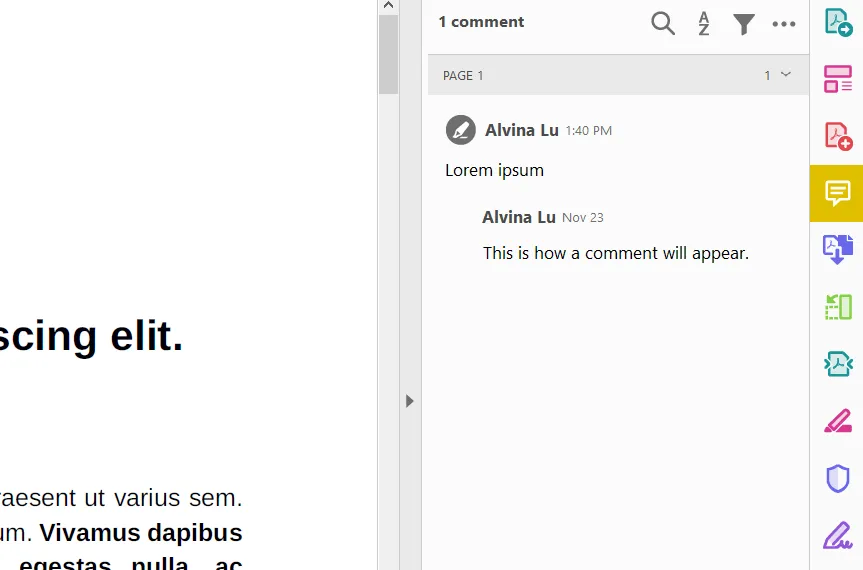
When you download your content as a PDF with comments, comments will display as if you created the comment directly in Adobe. This allows you to edit comments after they have been downloaded.
Notes:
You’re able to see the comment on the content itself:
You’re also able to see a list of all the comments in the right side panel if you select the “Comment” feature:
Still have questions?
Chat
9am – 5pm Eastern Time, by clicking the icon in the bottom right corner of the screen.