


Deleting References
Occasionally, the user might need to update their references on a document or remove them altogether. Papercurve supports the deletion of reference annotations linked per highlight or pin drop by bulk or individually.
Deleting Individual Reference Annotations
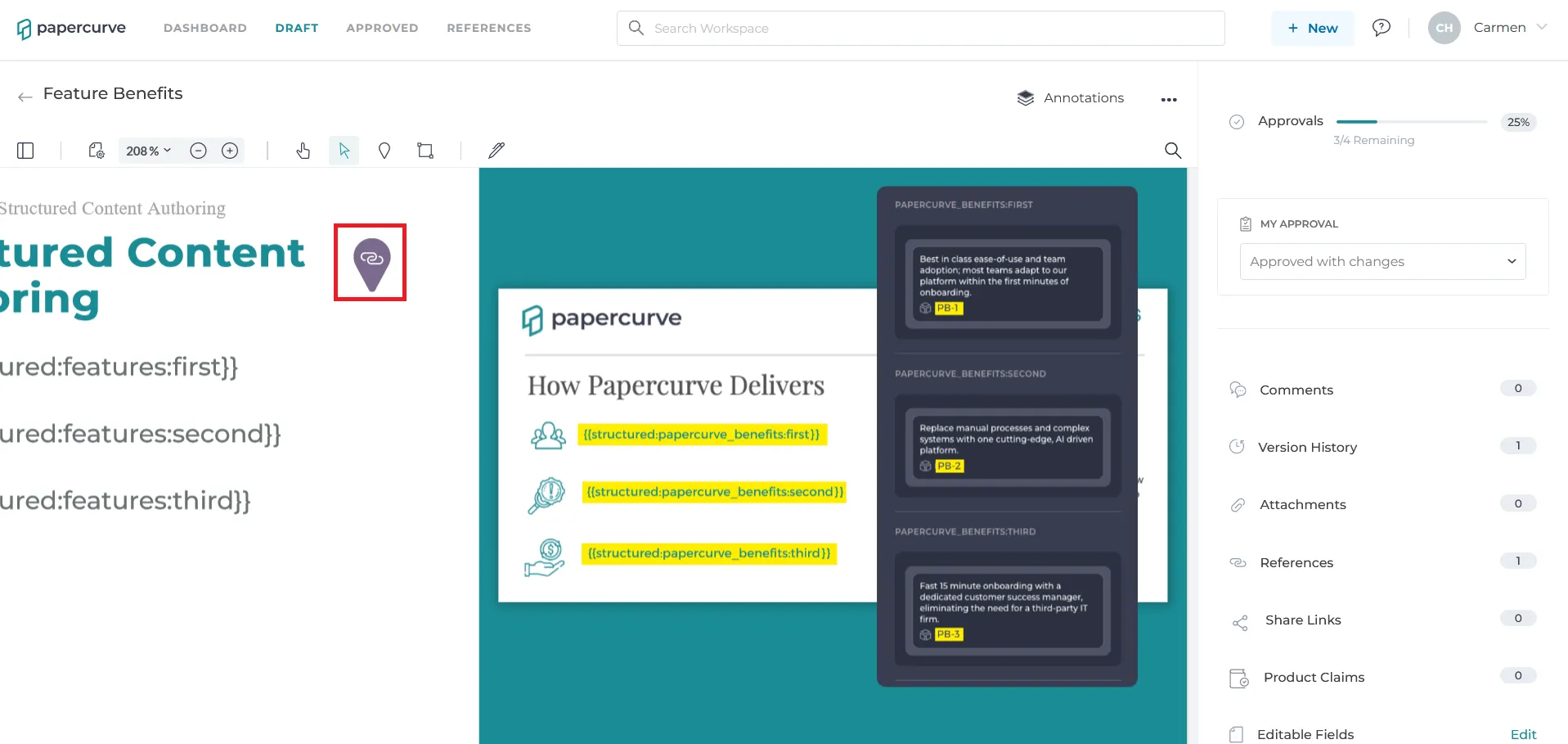
1.Select the reference highlight or pin drop that you would like to have specific reference annotation deleted.
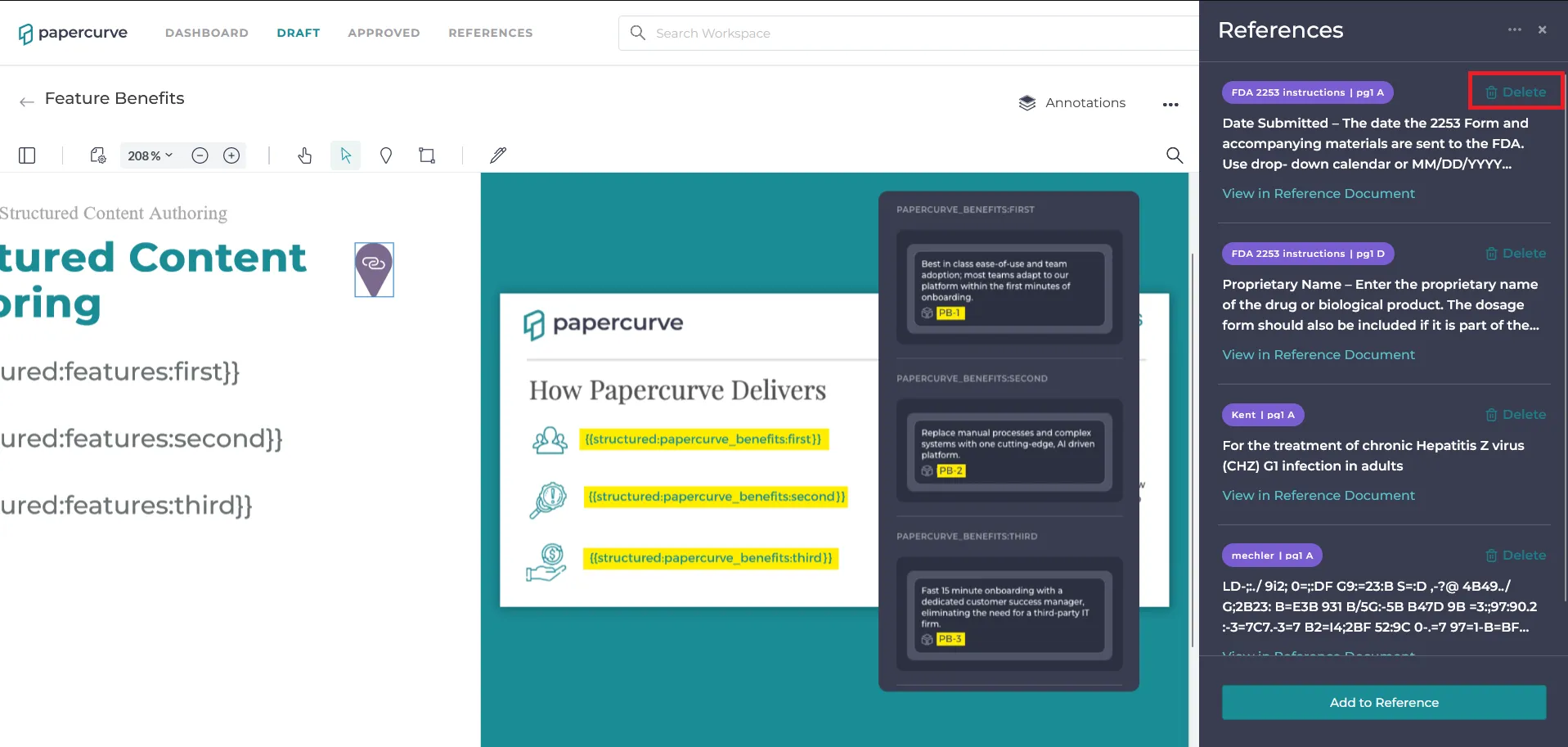
2.Then click on the “Delete” icon next to the reference annotation that requires deletion to remove it from the list of references.
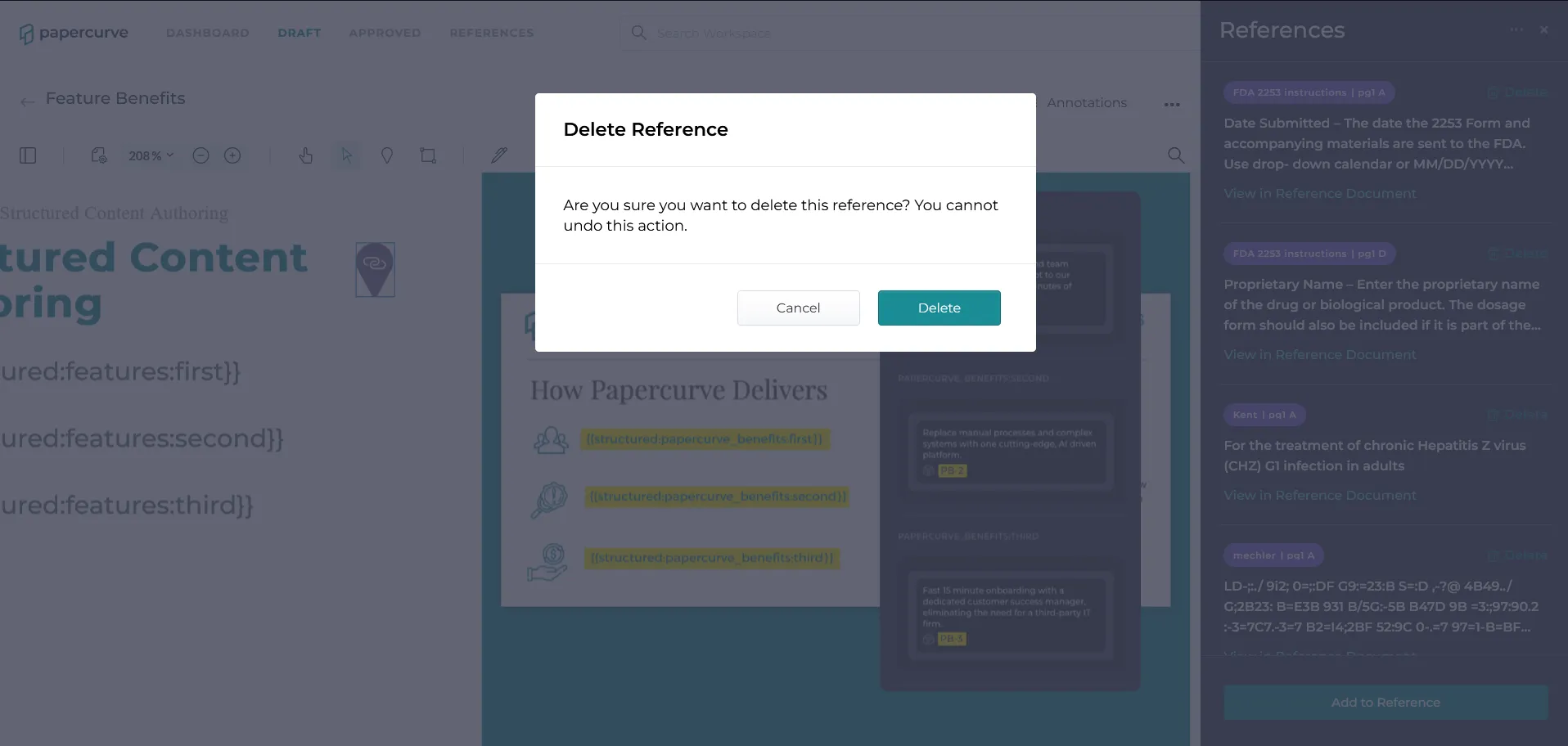
3.A prompt will appear confirming the deletion of the reference annotation.
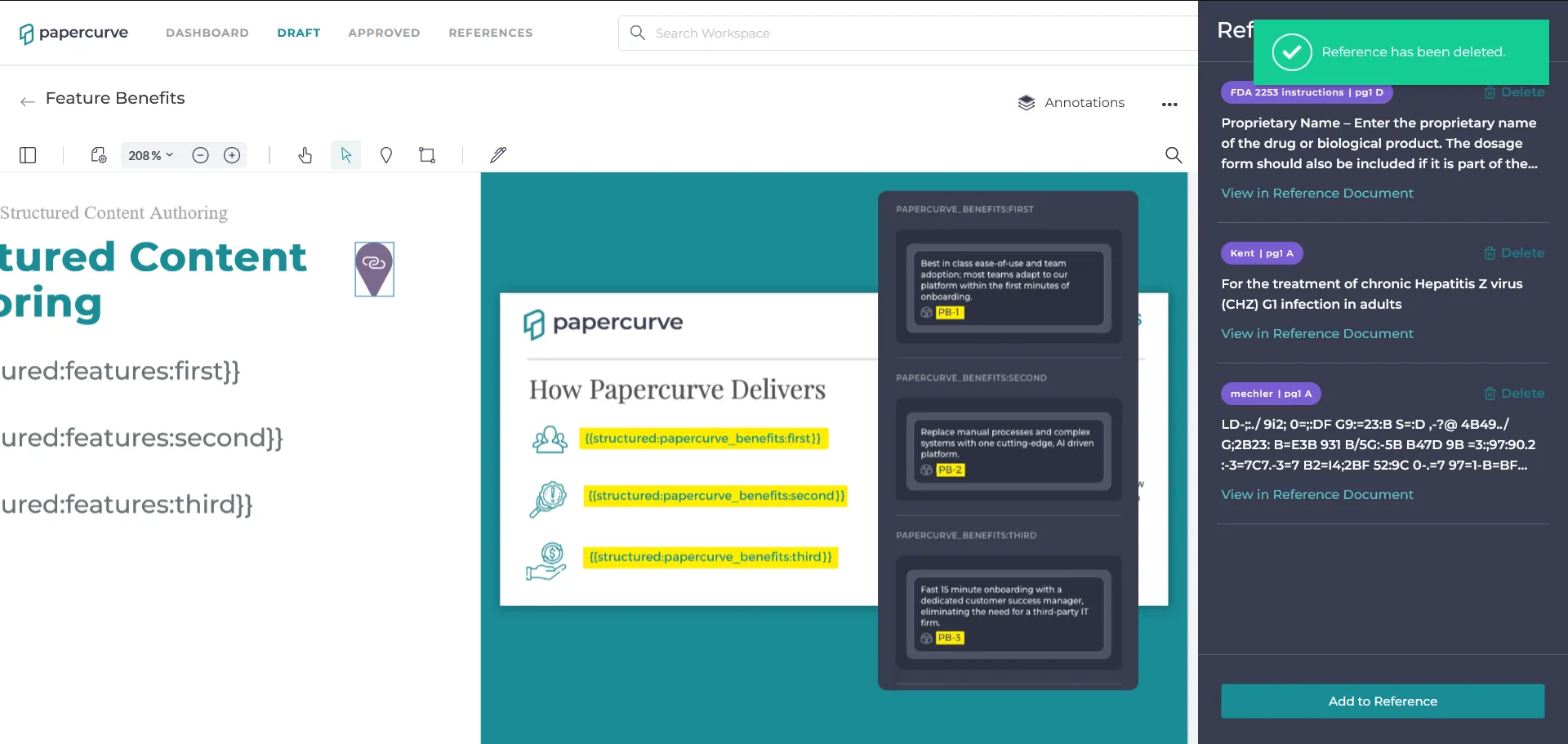
4.Once confirmed, a message will appear informing that the reference annotation was deleted successfully from the reference highlight or pin drop.
Deleting All Reference Annotations
1.Select the reference highlight or pin drop that would be deleted.
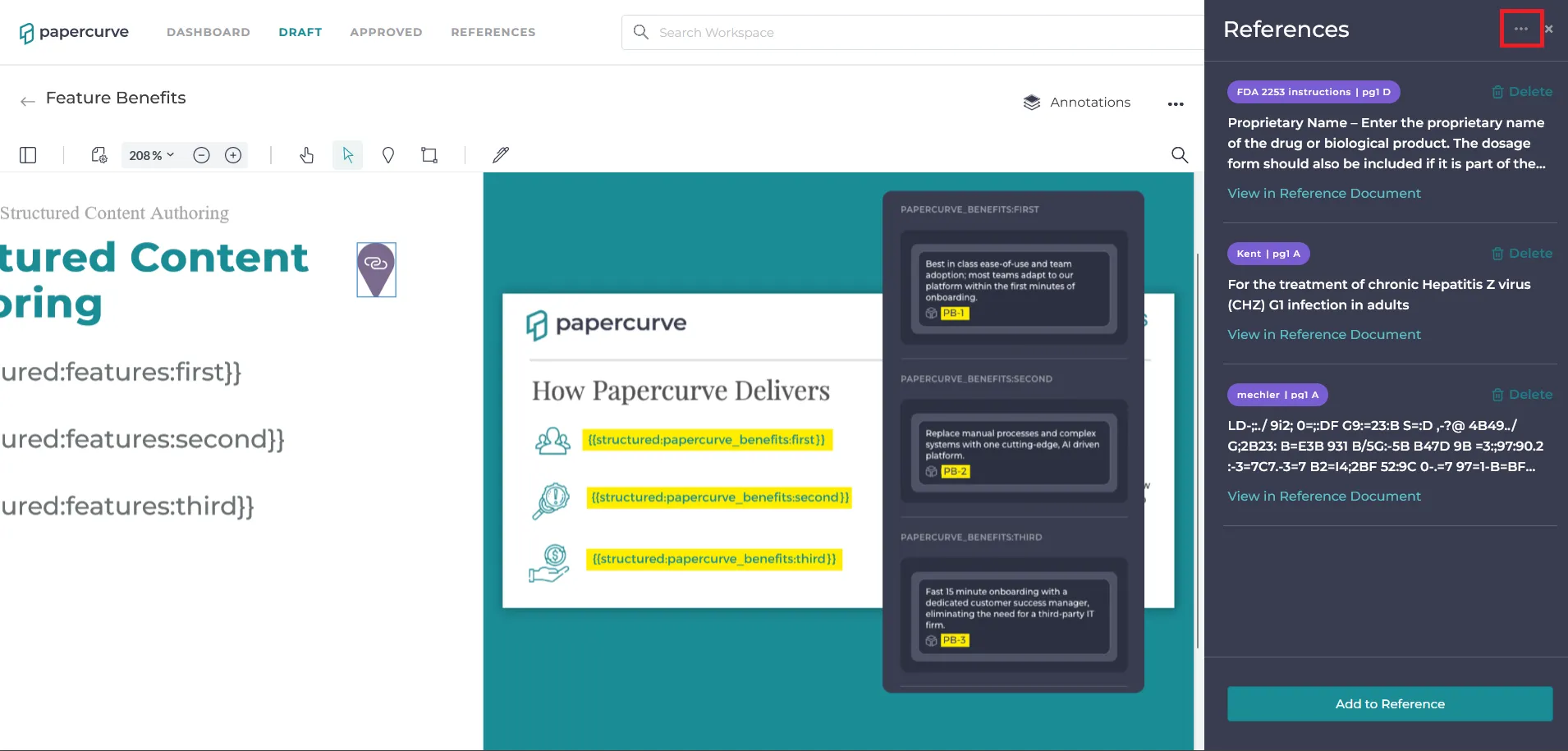
2.To delete all reference annotations associated with a highlight or pin drop. select the 3 dot menu on the top right of the reference panel.
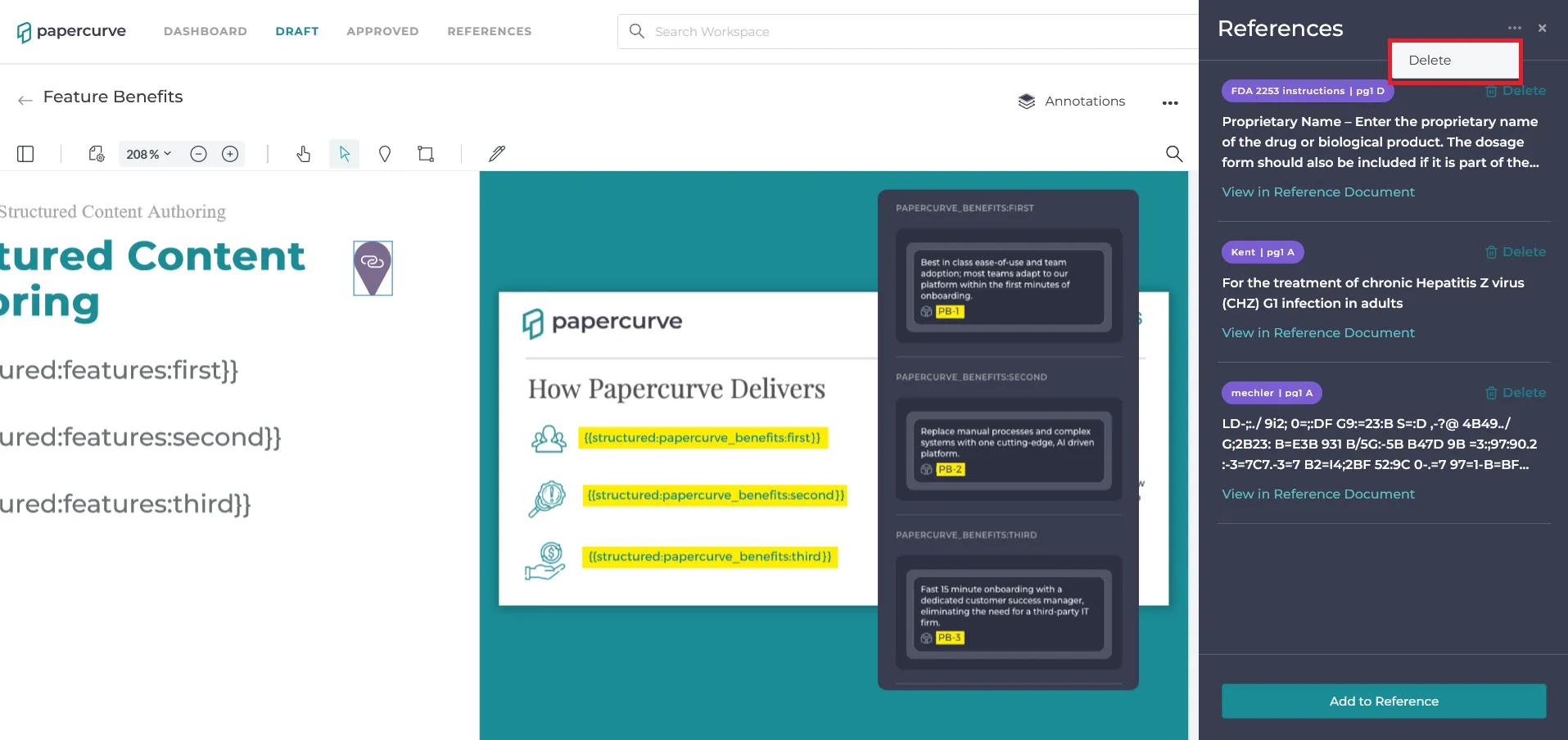
3.Then select the delete option on the drop-down menu.
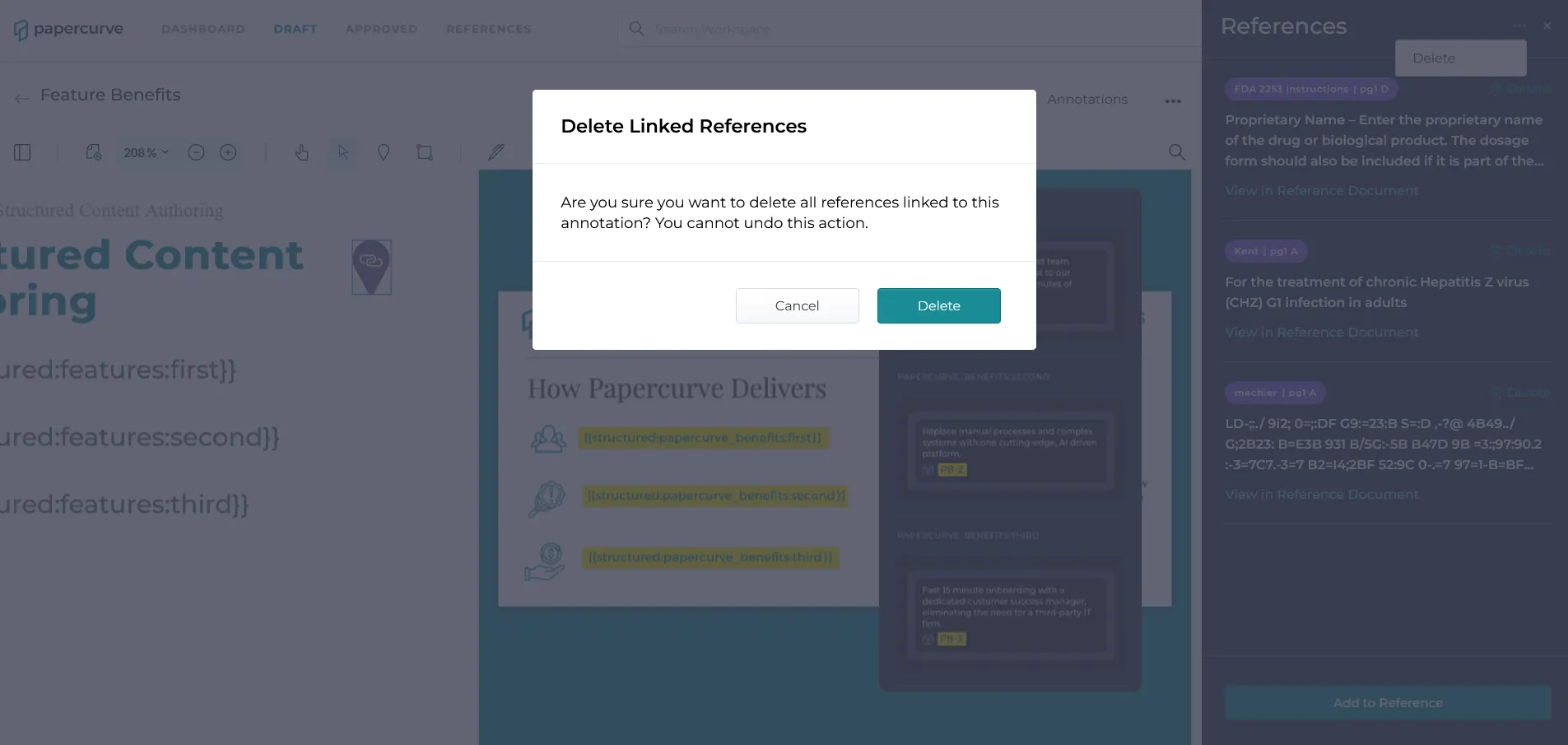
4.A message will appear confirming the delete action.
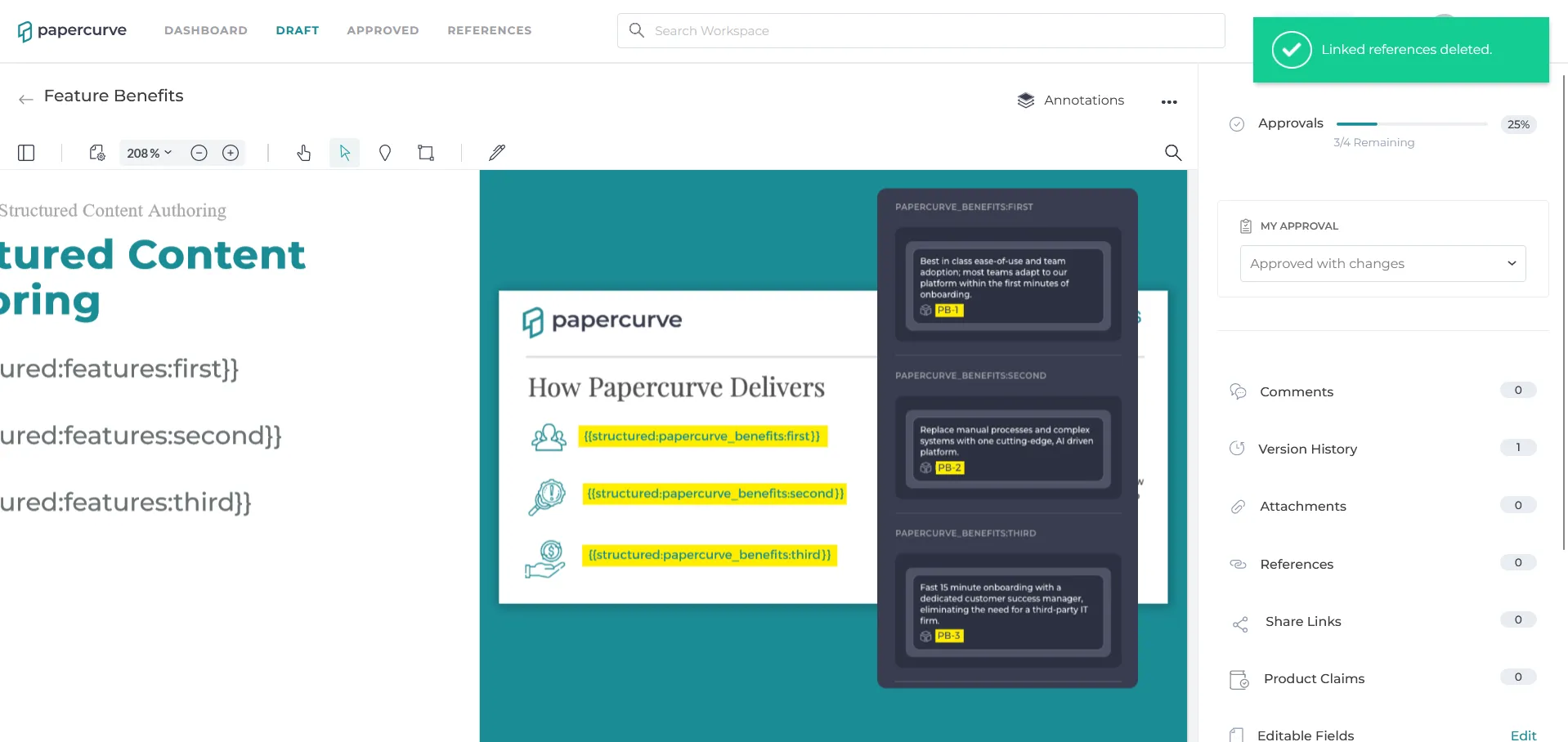
5.Once deletion of the reference is confirmed, a message will appear indicating the successful deletion of the reference.
Still have questions?
Chat
9am – 5pm Eastern Time, by clicking the icon in the bottom right corner of the screen.