


Activity Log in Papercurve
The activity log in Papercurve will log many different events that occur when the platform is being used. You can use the activity log reports provided by Papercurve to view, sort, filter, and analyze to determine who has done what within Papercurve. Knowing who is taking what action on which content in your Papercurve instance can be critical in helping your organization fulfill its regulatory compliance and records management requirements.
View Activity Log Reports
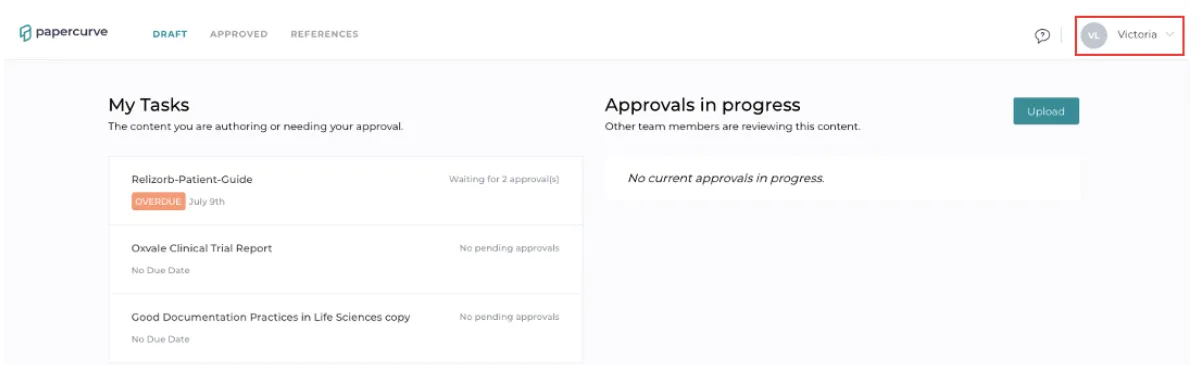
- To view your activity log report, click on your user located on the top right hand side of the page.
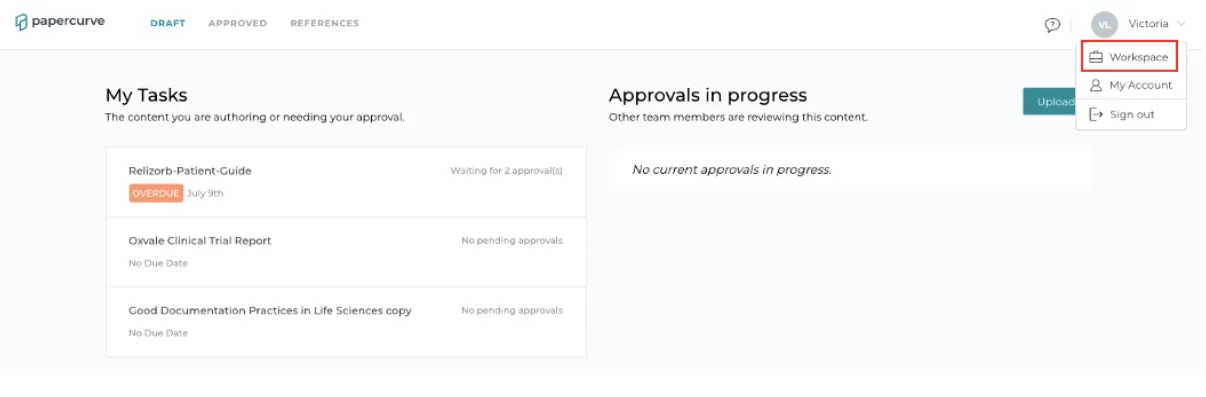
- Next, click on Workspace from the drop down menu that will appear.
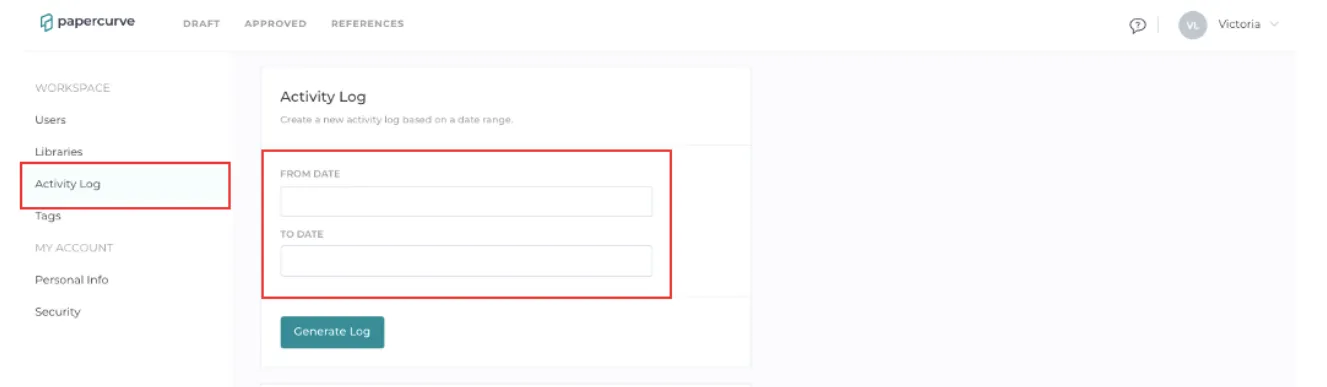
3. Navigate over to the Activity Log option on the side panel. From here, you should be able to input the date range that you would like to pull the log for.
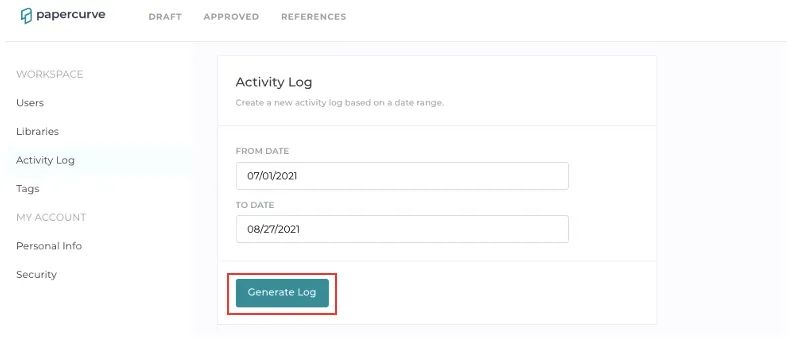
- Next, click on Generate Log to receive a downloadable log from the entered dates.
- Depending on your date range, your activity may take a few minutes to generate. Once the log has generated it will appear in the Download Activity Log section.
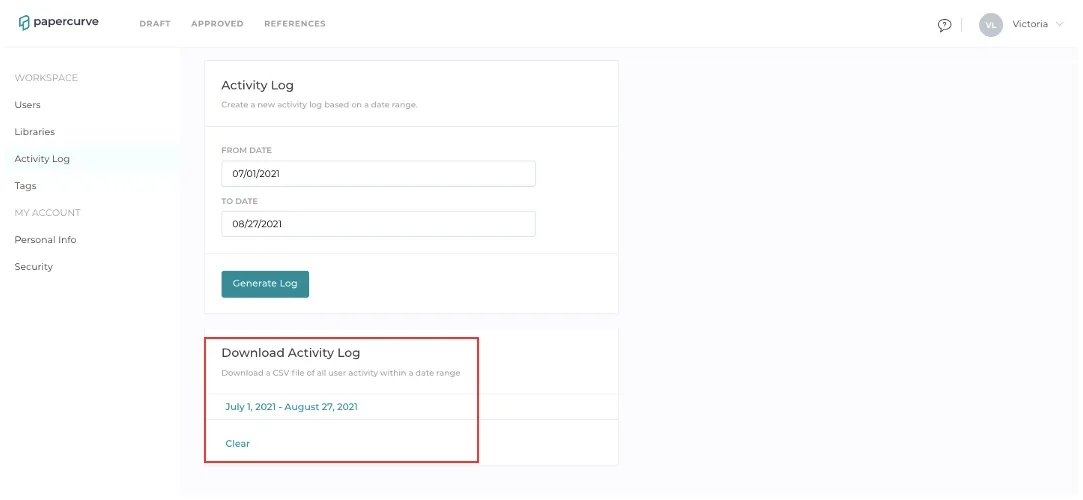
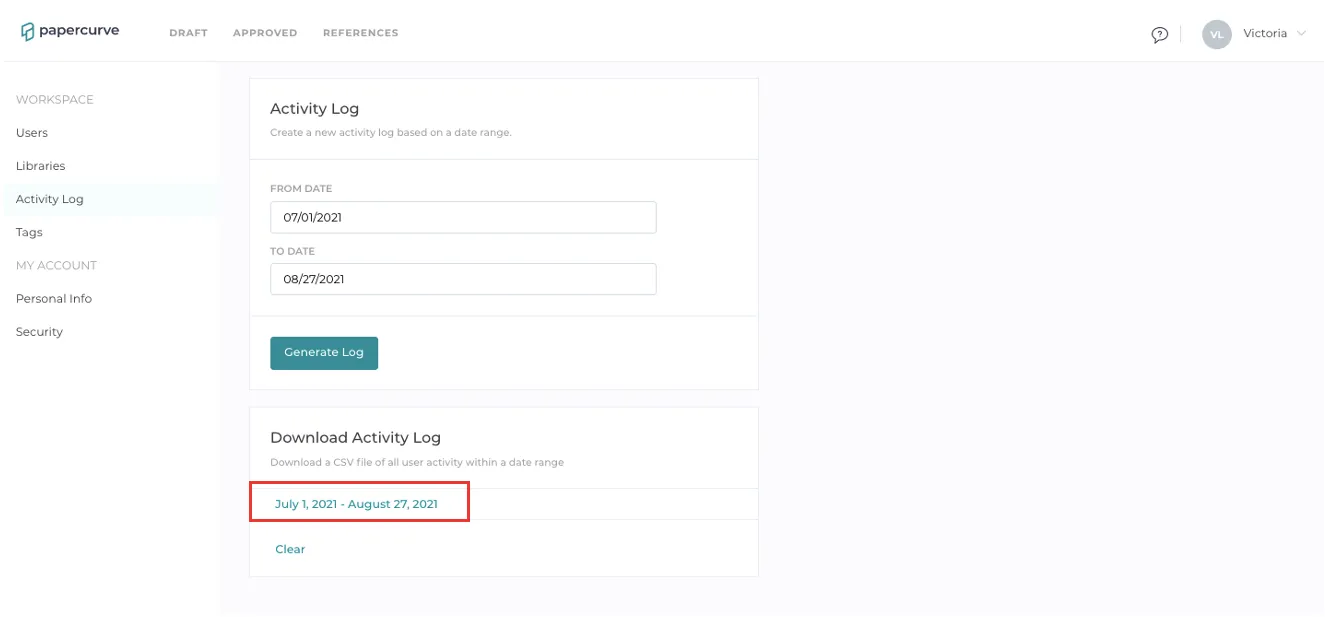
5.You can download a CSV copy of your Activity Log by selecting it the Download Activity Log section.
Details Available for Activity Log Reports
The following details are available for activity log reports to help you determine who is taking what actions across the platform:
· Timestamp of event – identifies the time that the event occurred
· Record type – identifies the component type of the event (library, users, document etc)
· User Info – identifies the user that made the change
· Event details – identifies the details that was change
Below are some events available for the activity log reports
· Activate and deactivate users
· Creating and deleting libraries
· Uploading and deleting content
· Changes made to approval status
· Editing of content (changes to comments, changes to references, changes to versions etc)
Still have questions?
Chat
9am – 5pm Eastern Time, by clicking the icon in the bottom right corner of the screen.